Marketplace subscriptions
Some add-ons in the CAKE.com Marketplace require a paid subscription to use in the workspace. You can track and manage your paid add-on subscriptions in one place through your CAKE.com account.
At the moment, this process is only applicable for Clockify add-ons.
To view your Marketplace subscriptions, log in to your CAKE.com account and go to the Subscriptions page. Marketplace subscriptions are grouped with their connected workspaces and listed separately from product subscriptions.
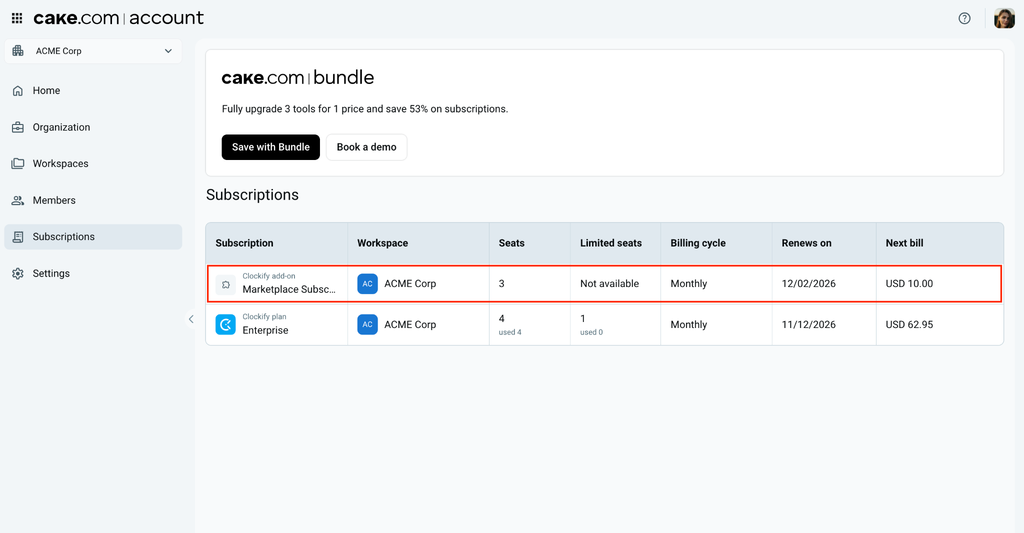
- Organization owners can view and receive notifications for all add-on subscriptions in all workspaces across all CAKE products.
- Workspace admins can only view and receive notifications for add-on subscriptions within the specific workspaces they manage.
How subscription price is calculated #
Paid add-ons available in the CAKE.com Marketplace use one of the following pricing models: flat-rate or per-seat.
- Flat-rate add-ons charge a fixed subscription price per workspace installation, regardless of team size.
- Per-seat add-ons charge a subscription based on the number of active members (full members) in the connected workspace.
When you purchase a per-seat add-on, CAKE.com automatically calculates the total subscription price based on the number of active users in the workspace. At the time of renewal, billed seats are adjusted based on current active members. This ensures that your add-on subscription always matches the number of active users in your workspace.
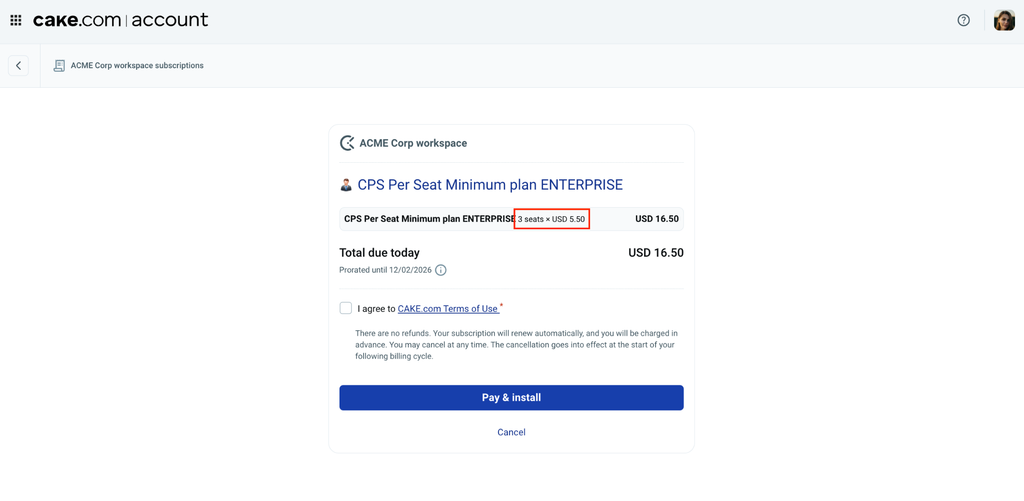
Each workspace with an installed add-on is billed separately for its Marketplace subscription.
Purchase and install paid add-on subscription #
Installing a paid add-on from the Marketplace initiates a combined setup and checkout process. Your starting seat count is automatically aligned with your current active workspace members.
After choosing an add-on from the Marketplace, follow these steps to proceed with installation.
To purchase and install a paid add-on:
1. Click Install
2. Fill out the Add-on installation details
- Select the workspace you want to install the add-on
- Select the I agree to the add-on Privacy policy checkbox
- Click Proceed
3. Review the total subscription price
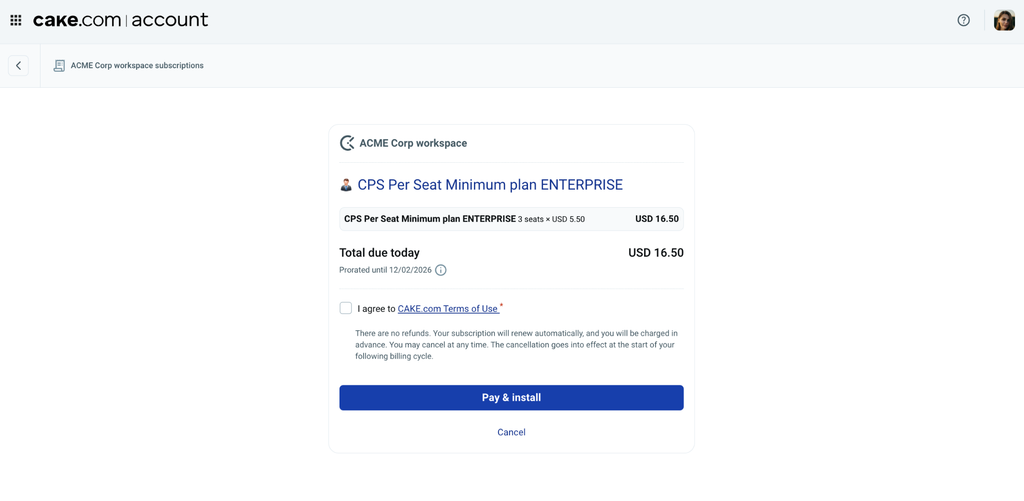
4. Select the I agree to CAKE.com Terms of Use checkbox
5. Click Pay & install
6. Click Test add-on to return to the workspace and test the installed add-on
Manage billing and payments #
You can manage payment methods and view billing history directly from the workspace subscription page.
- Payment Method: Workspace owners and admins can view and update the payment method from the add-on subscription page to ensure payments succeed. Customer and invoice information is strictly inherited from the Organization and cannot be changed.
- Invoices: The Invoices tab displays all receipts related to the workspace which you can view or download. Here you can find the date of the charge, amount paid, and status of the invoice.
Resolve missing seats #
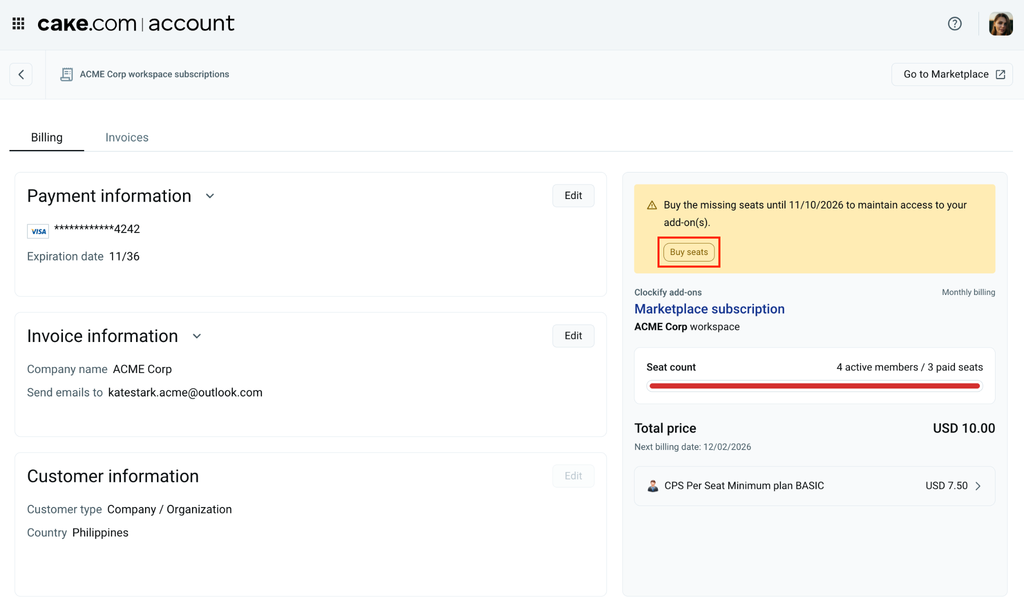
When you add new members to your workspace, causing active users to exceed your paid add-on seats, your account will have missing seats. When this happens, workspace admins receive an in-app alert to resolve the missing seat difference.
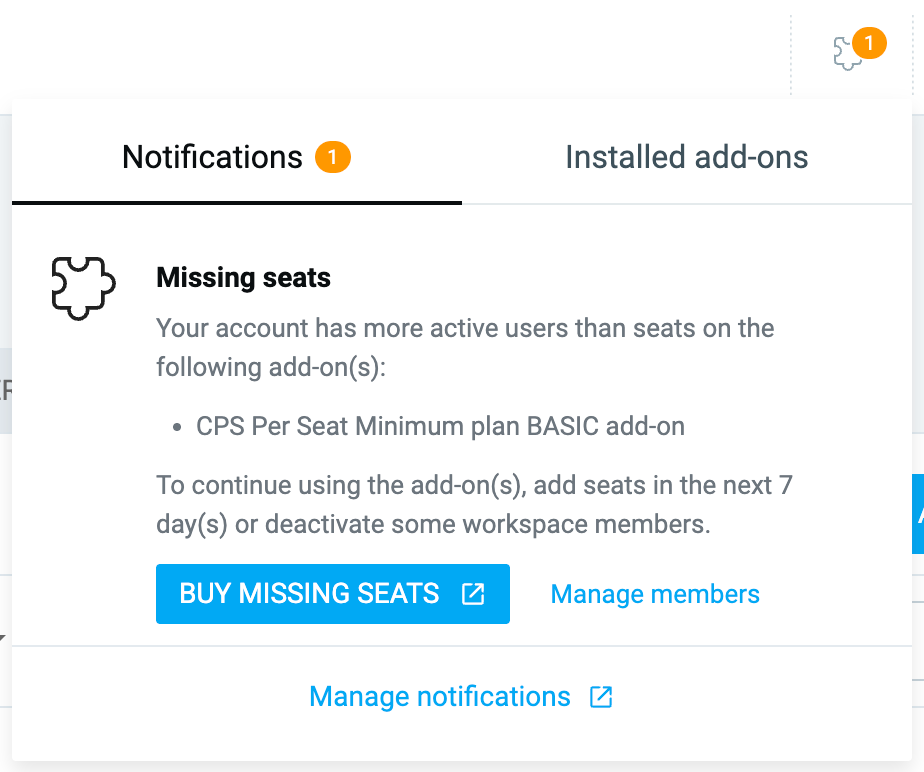
You have seven (7) days to resolve these missing seats, or your access to the add-on will be restricted until the issue has been resolved.
You can resolve missing seats in two ways:
- Buy additional seats: If your workspace has more active users than purchased seats, you can purchase missing seats directly in CAKE.com. Adding seats in the middle of a billing cycle incurs a prorated charge for the remainder of the current billing period
- Deactivate inactive members: Reduce your active user count to match your paid seats.
Check this article for the steps on deactivating members in your Clockify workspace.
Buy missing add-on seats #
- Open your CAKE.com account
- Go to
 Subscriptions
- Click the name of the add-on subscription
- Optional: Click Edit on the Payment information section to update payment details
- Click Buy seats
6. Review the additional prorated subscription price
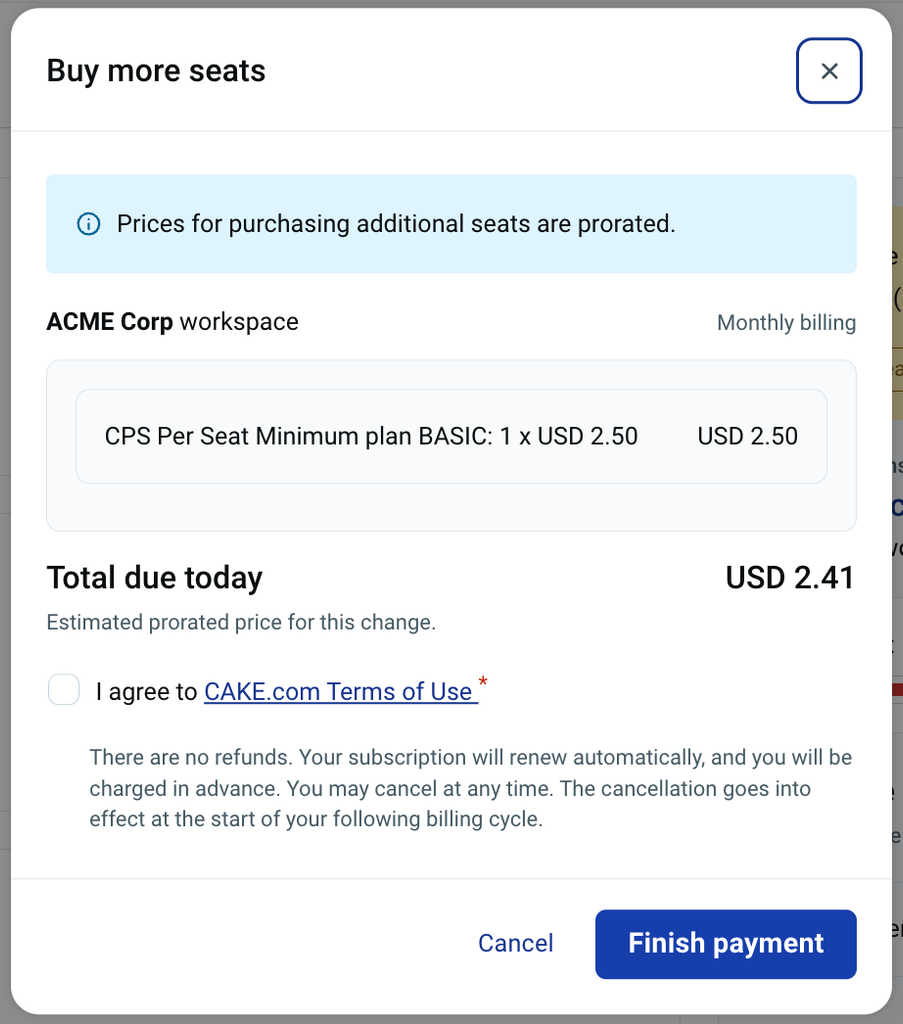
7. Select the I agree to CAKE.com Terms of Use checkbox
8. Click Finish payment
The updated seat count for your subscription will be displayed immediately.
Cancel or resume add-on subscription #
You can temporarily deactivate an active add-on to disable its features in the workspace without canceling its subscription.
Paid add-ons cannot be uninstalled directly. They must be canceled first and reach the end of the billing period before they are removed. Free add-ons can be removed (uninstalled) immediately.
Cancel paid add-on subscription #
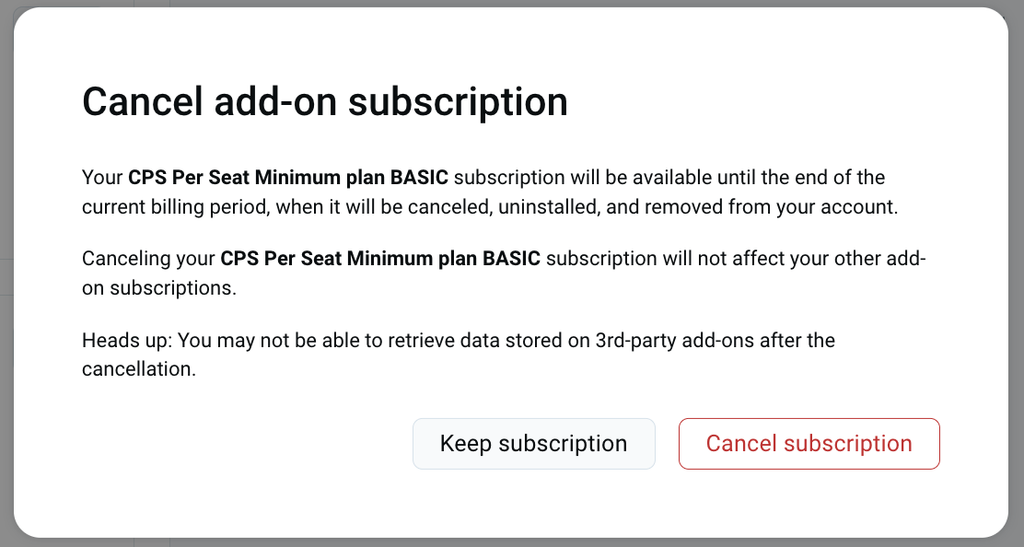
You can cancel your add-on subscription at any time without affecting your product plan or other add-ons. You retain full access to the add-on until the end of the billing period, and then the add-on will be automatically removed from your account.
Canceling a third-party add-on subscription may prevent you from retrieving data stored on that add-on after cancellation.
To cancel an add-on subscription:
- Open your CAKE.com account
- Go to Subscriptions
- Click the name of the add-on subscription
- Click > to display the subscription details
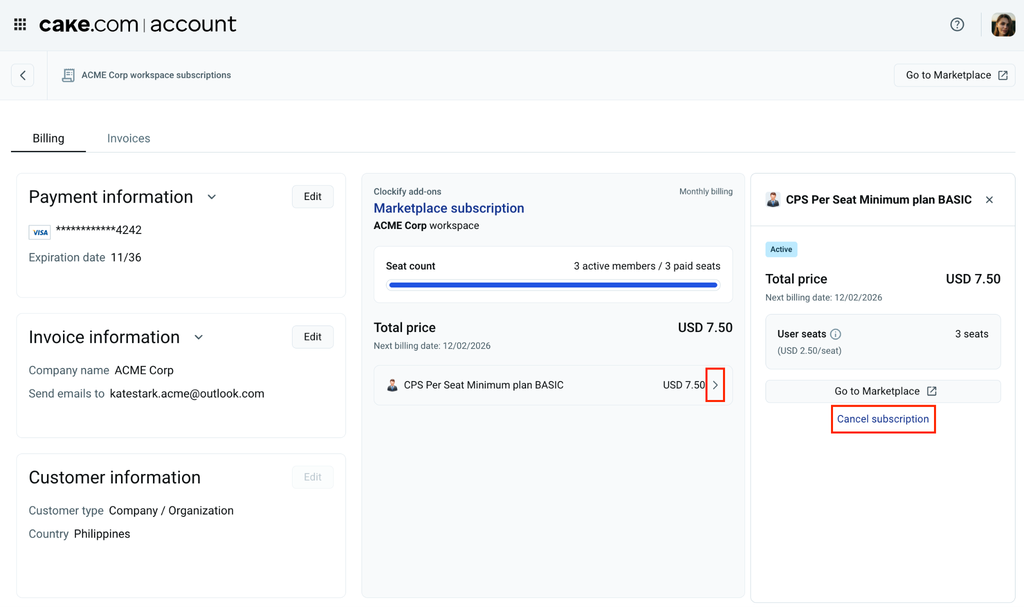
5. Click Cancel subscription
6. Click Cancel subscription on the dialog box to confirm
Reactivate add-on subscription #
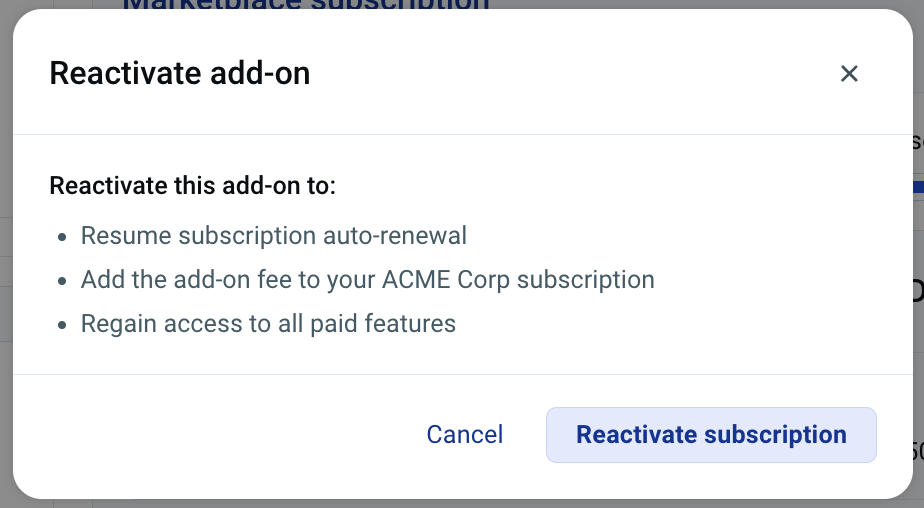
If you change your mind before your current billing period expires, you can reactivate a canceled add-on to keep your data, maintain active features, and restore automatic renewals without reinstalling the add-on.
To reactivate an add-on subscription:
- Open your CAKE.com account
- Go to Subscriptions
- Click the name of the add-on subscription
- Click > to display the subscription details
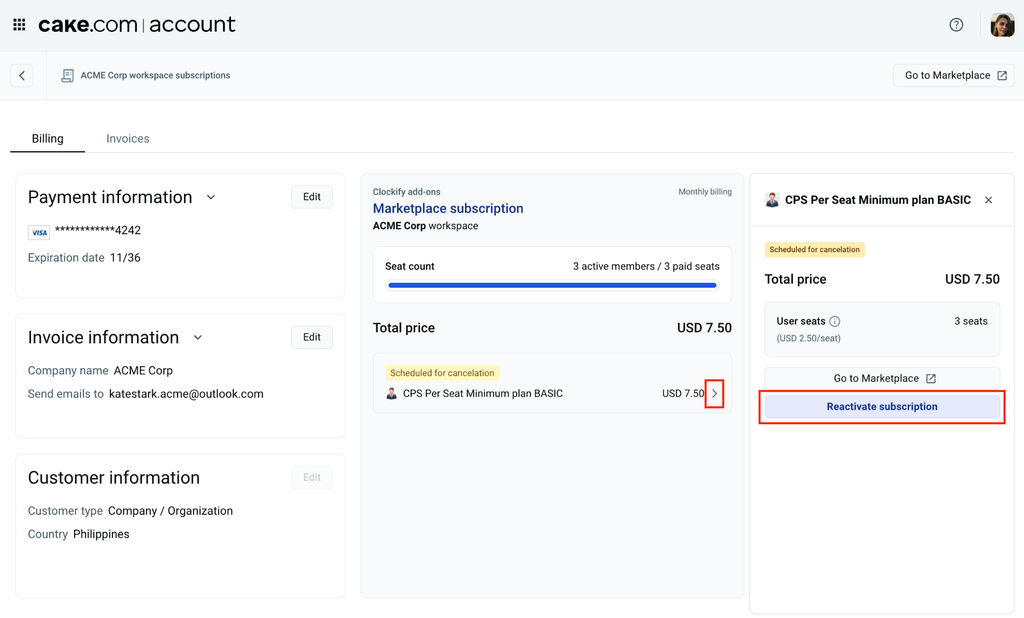
5. Click Reactivate subscription
6. Click Reactivate subscription on the dialog box to confirm
Workspace downgrade #
Some Marketplace add-ons require a specific product plan (e.g. Enterprise plan) before you can purchase them. If you downgrade a workspace below the required plan, you will be notified that your marketplace subscription will be cancelled at the end of the billing period.
FAQs #
Can I purchase additional add-on seats in advance?
No, you cannot purchase empty or “spare” add-on seats in advance. For per-seat add-ons, seat counts are strictly tied to the active members in the workspace. You can only purchase seats to match newly added active workspace members.
Why am I prompted to buy an add-on seat if my subscription is already scheduled for cancellation?
When you cancel an add-on subscription, it remains active until the end of the current billing period. If you invite a new member to your workspace during this period, your workspace will have missing seats. To maintain access for the remainder of the period, you will be prompted to purchase a seat for that new user which will be charged at a prorated amount.
What happens if I don’t resolve the missing seats notification within the 7-day grace period?
During the 7-day grace period, all team members retain access to the add-on. If the missing seats notification is not resolved by day 8, access to the add-on is temporarily suspended for the entire workspace. Admins can restore access immediately at any time by purchasing the missing seats in CAKE.com or deactivating extra members in Clockify.
Can I get a refund for a paid add-on if I cancel it before my subscription ends?
No. You retain full access to the add-on until the end of the billing period. Once the billing period ends, the add-on will be automatically removed from your account.