Manage billing information
Customer information is shared across all products in the CAKE.com Suite. This means you may be charged for multiple subscriptions (e.g. one for each workspace you’re a part of), even as the same user in each workspace.
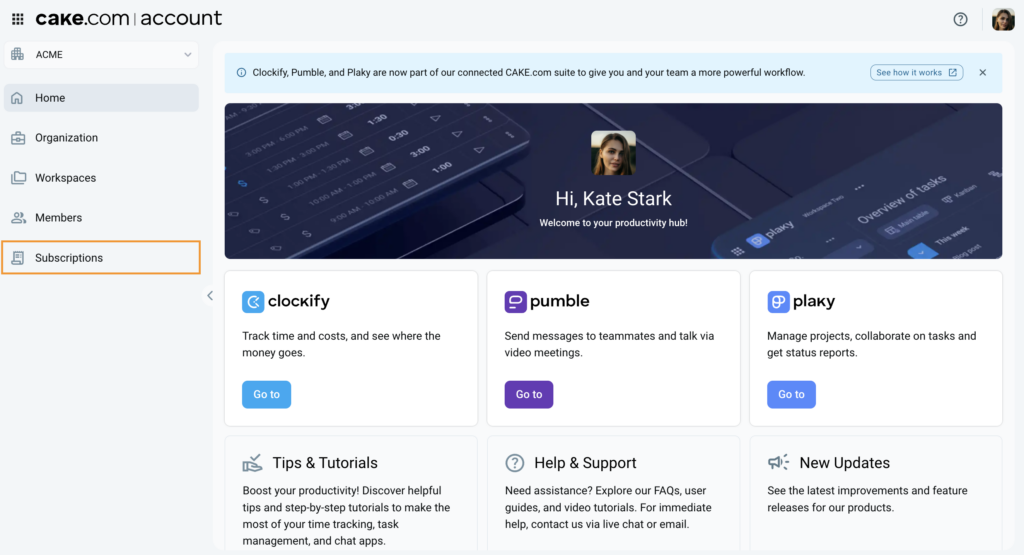
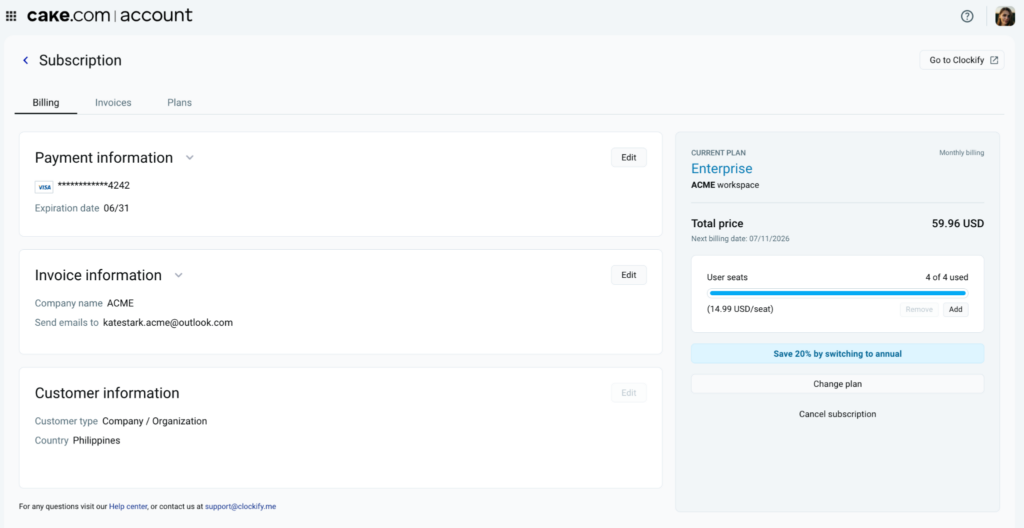
To access your billing information from the CAKE.com homepage, navigate to the  Subscriptions page and select the workspace subscription you want to update. Use this page to update your CAKE.com Account’s billing information which includes:
- Payment information: Displays your payment details (e.g. credit card number) and contact information.
- Invoice information: Displays invoice details including your company name and address.
- Customer information: Displays your Customer type and Country. The Customer type can only be changed from Individual to Company/Organization and is not editable. Organization owners can contact Support if this information needs update.
Permissions #
Your role determines which type of information you can edit.
- Organization owners can update the payment information and invoice information.
- Workspace admins are only allowed to update the payment information for workspaces they manage.
Update payment information #
It is important to keep your payment information up to date to ensure that your subscription successfully renews at the end of your billing cycle and remains active.
To update payment information:
- Navigate to the Subscriptions page on the sidebar
- Click the subscription that you want to update (e.g. Clockify Standard)
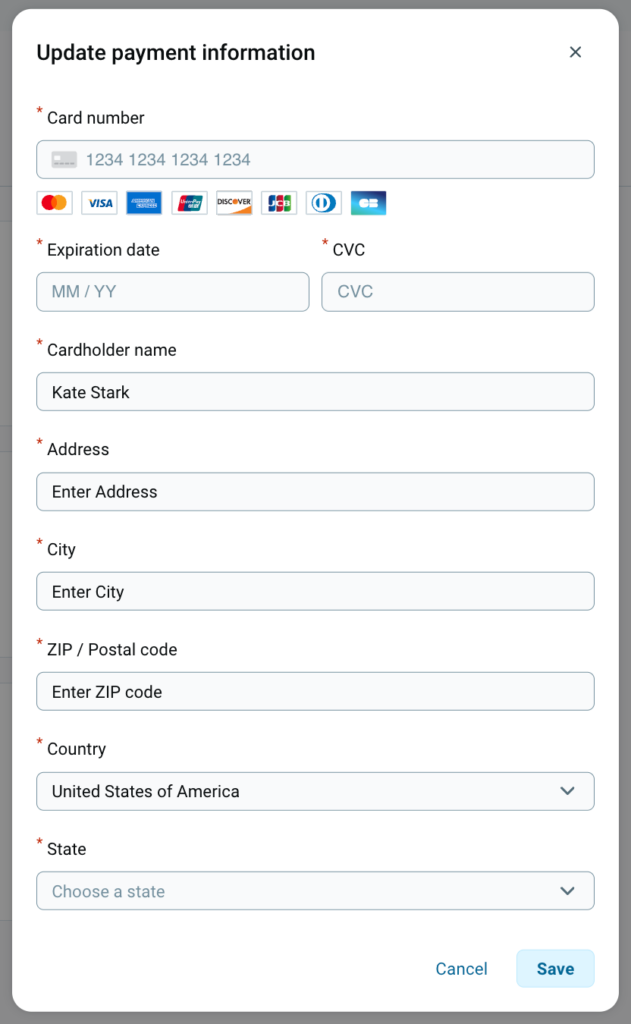
- On Billing > Payment information section, click Edit
- Update your payment information (e.g. card number, card holder name, address)
- Click Save
Update invoice information #
The invoice information you provide is used in the invoice generated for your billed subscription. Make sure to keep your information up to date to ensure accurate calculation of sales tax or VAT.
To update invoice information:
- Navigate to the Subscriptions page on the sidebar
- Click the subscription that you want to update
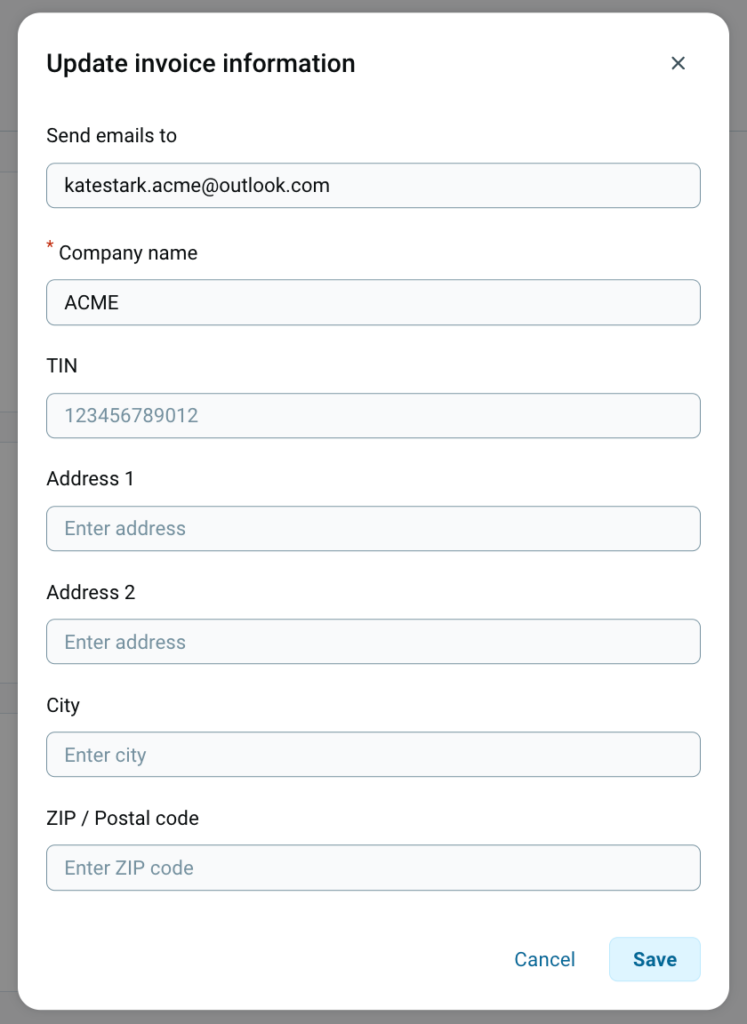
- On Billing > Invoice information section, click Edit
- Update your invoice information (e.g. email, TIN, address)
- Click Save
Invoices that were already issued cannot be updated retroactively.
The address field in the Invoice information section serves as your legal address for tax compliance. If you move to another location, updating this section ensures the correct tax rates are applied to your future renewal invoices.
Tax exemption cases #
Some businesses in the US are eligible for tax exemption, meaning they do not need to pay sales tax on their subscriptions. To validate your tax-exempt status, please email us at [email protected] with the following information:
- Tax Exemption Certificate addressed to CAKE.com Inc., 2100 Geng Rd STE 210, Palo Alto, CA 94303, USA
- Email address associated with your subscription or the email address of the account owner
We’ll review your submission and apply the tax exemption accordingly.
Check billing history #
The Invoices tab contains a list of your CAKE.com Account’s billing history. It displays the following information:
- Date – date when the transaction occurred
- Amount – amount billed for the transaction
- Description – transaction type that occurred (e.g. Plan upgrade)
- Status – status of the transaction (e.g. Paid)
- Download Invoice – an icon to download a copy of the invoice
View invoices #
View and download your invoices from the Invoices tab.
To check your invoices:
- Navigate to the Subscriptions page on the sidebar
- Click the subscription that you want to update
- Click the Invoices tab
- Click
 (Download Invoice) of the billing statement you want to view
The invoice will be downloaded in PDF format in your local device.
Billing and seat discrepancies #
If your invoice is incorrect or if you notice a mismatch with the information, consider the following scenarios:
- My invoice shows a higher number of user seats compared to my team members
When you deactivate or remove a user from your workspace, their seat remains a part of your workspace until you manually reduce the number of seats. Once you reduce the number of seats, your next bill will automatically be adjusted in the next billing cycle.
- My company address or Tax ID is incorrect on my latest invoice
Make sure to keep your billing profile updated, especially if you moved location, to ensure correct information on your renewal invoices. Changes to your billing profile do not apply retroactively.
- I have missing invoices from the time before the migration to CAKE.com account
You can find your invoices when you login to CAKE.com, navigate to Subscriptions page, select the workspace subscription, and click the Invoices tab. If you can’t find the invoice you’re looking for, send an email to CAKE.com support or [email protected] with details of your subscription.