Roles and Permissions
The CAKE.com Productivity Suite is a platform designed to improve team collaboration and productivity. The platform has different user roles tailored to meet the needs of different teams and organizations working in different business environments. Each role has its own permission that determines the user’s level of access in the organization or workspace.
User roles are organized in two main levels.
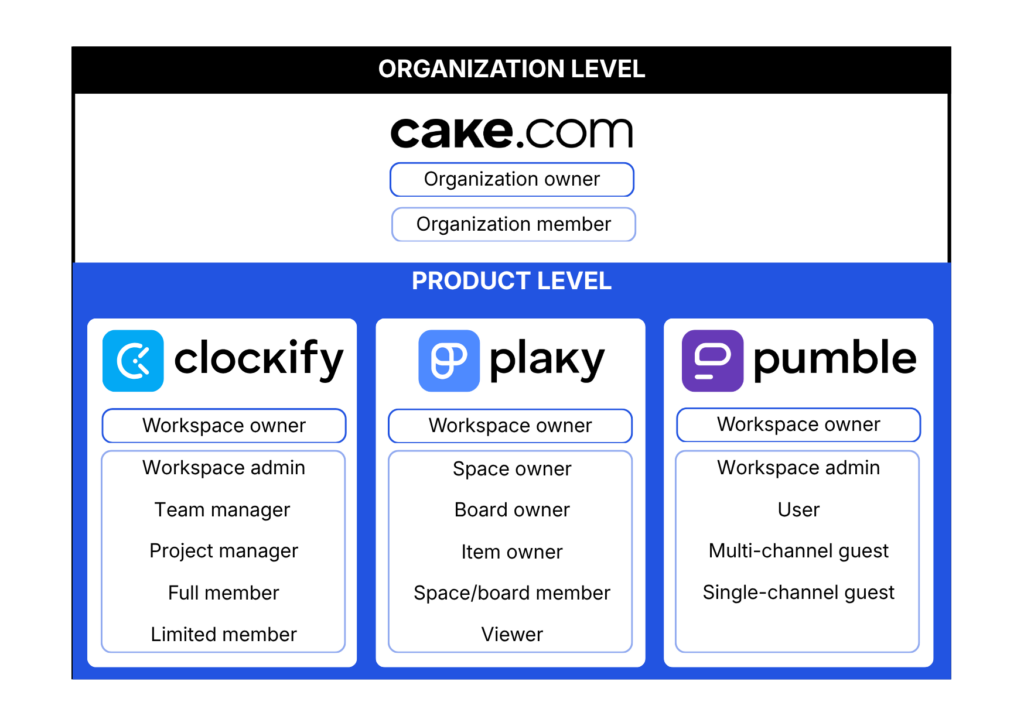
Organization-level roles #
At the organization level, there are two primary roles:
1. Owner: The owner is the highest level role within the CAKE.com organization. They have the authority to manage organizations, access all information, and grant permissions for all features and actions. While an organization can only have one owner, that owner can create multiple organizations. Also, ownership can be transferred from one organization member to another.
2. Member: Members are users within the organization that use the core features of the CAKE.com app (e.g. track time, manage tasks, send messages). They have permissions limited to modifying content in the workspaces they are in and modifying their account.
Certain workspace roles like a Workspace admin have additional permissions on the organization level, such as managing bundle payments and creating new workspaces within the organization. Multiple workspace admins from different workspaces can exist within one organization.
To help you understand these roles better, check out the tables below with a comprehensive list of access permissions within the CAKE.com organization, categorized based on user roles and levels.
Items with asterisk (*) mean that the permission is product-specific or within the product workspace that the role belongs to.
| Organization | ||
| Owner | Member | |
| Create organization | ✔️ | ✖️ |
| Edit organization | ✔️ | ✖️ |
| Delete organization | ✔️ | ✖️ |
| Transfer organization | ✔️ | ✖️ |
| Workspace | |||
| Owner | WS Admin | Member | |
| Create workspace | ✔️ | ✔️ | ✖️ |
| Edit workspace | ✔️ | ✔️ | ✖️ |
| Delete product workspace | ✔️ | ✖️ | ✖️ |
| Transfer workspace between orgs | ✔️ | ✖️ | ✖️ |
| View workspace data | ✔️ | ✔️ | ✔️* |
| Edit workspace data | ✔️ | ✔️ | ✔️* |
Transfer ownership: Only a member with active memberships to all workspaces under the organization can become a new owner of that organization.
| Users | |||
| Owner | WS Admin | Member | |
| Assign admin | ✔️ | ✔️ | ✖️ |
| Remove admin | ✔️ | ✖️ | ✖️ |
| Transfer ownership | ✔️ | ✖️ | ✖️ |
| Remove ws admin role from org | ✔️ | ✖️ | ✖️ |
| Invite members to ws | ✔️ | ✔️ | ✔️* |
| Revoke user invite | ✔️ | ✔️ | ✖️ |
| Deactivate members from ws | ✔️ | ✔️ | ✖️ |
| Deactivate own account from ws | ✖️ | ✔️ | ✔️ |
| Edit other user profile info | ✖️ | ✖️ | ✖️ |
| Delete other user profile info | ✔️ | ✖️ | ✖️ |
| Edit own user profile info | ✔️ | ✔️ | ✔️ |
| Subscriptions (Individual / Bundle) | |||
| Owner | WS Admin | Member | |
| Create subscription | ✔️ | ✔️ | ✖️ |
| Cancel subscription | ✔️ | ✔️ | ✖️ |
| Add seats | ✔️ | ✔️ | ✖️ |
| Remove seats | ✔️ | ✔️ | ✖️ |
| Upgrade subscription | ✔️ | ✔️ | ✖️ |
| Downgrade subscription | ✔️ | ✔️ | ✖️ |
| Edit customer payment info | ✔️ | ✖️ | ✖️ |
| Edit payment info | ✔️ | ✔️ | ✖️ |
Product-level roles #
User roles defined for each product in the CAKE.com Suite can be found here:
The majority of user roles are the same on all three products: Workspace Owner, Workspace Admin, and Regular member. However, there are also product-specific roles available that have their own permissions within the product workspace.
Manage roles and permissions #
At the organization level, roles are automatically assigned as either Organization owner or Member. Organization owners can assign a Workspace admin and other product-specific roles within the workspace of the specific CAKE.com app.
Assign roles in the workspace #
To assign roles in the workspace:
- In the CAKE.com homepage, navigate to the Members page
- Click the member name
- In the Member details pane, click the three dots icon of the workspace
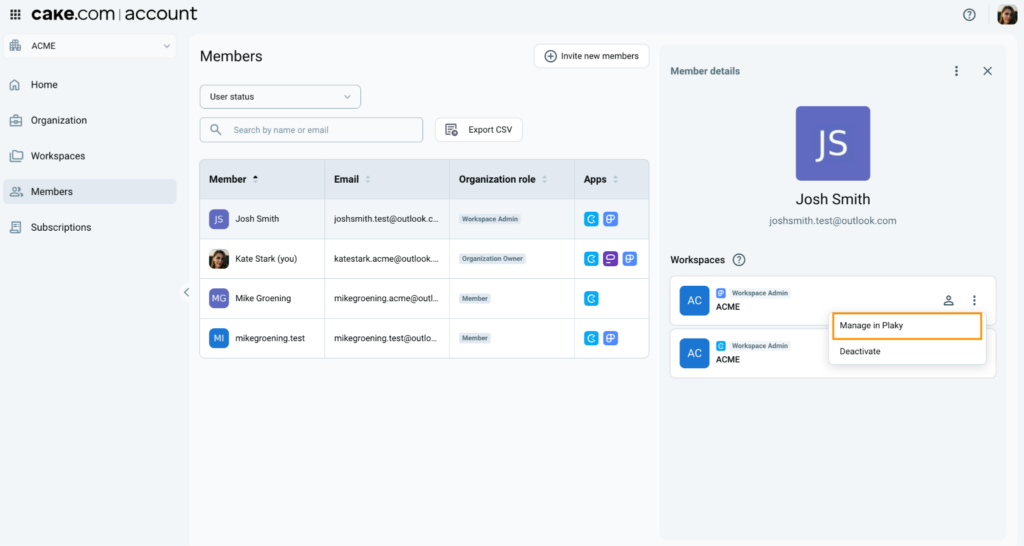
You will be redirected to the respective user management page of the selected workspace. On this page, select the role you want to assign to the user.
Read further on the following guides for more information on assigning roles on each CAKE.com app: