Subscription Management
Overview #
The Subscriptions page in your CAKE.com homepage displays the details of all your active subscriptions, whether you have individual product subscriptions (Clockify, Pumble, Plaky, Marketplace add-ons) or the CAKE.com Bundle, in one place.
On this page, you can:
- See a full list of all your active subscriptions
- View details like subscription plan type, renewal dates, billing cycles, and payment amounts
- Manage or update any subscription, whether it’s for a single product or the CAKE.com Bundle
Only the organization owner can edit data during the initial subscription purchase. Organization owners can see all subscriptions, while workspace admins can only see subscriptions for workspaces they manage.
View your subscriptions #
To view your subscription details:
- Log into your CAKE.com Account
- Navigate to the
 Subscriptions page from your account dashboard
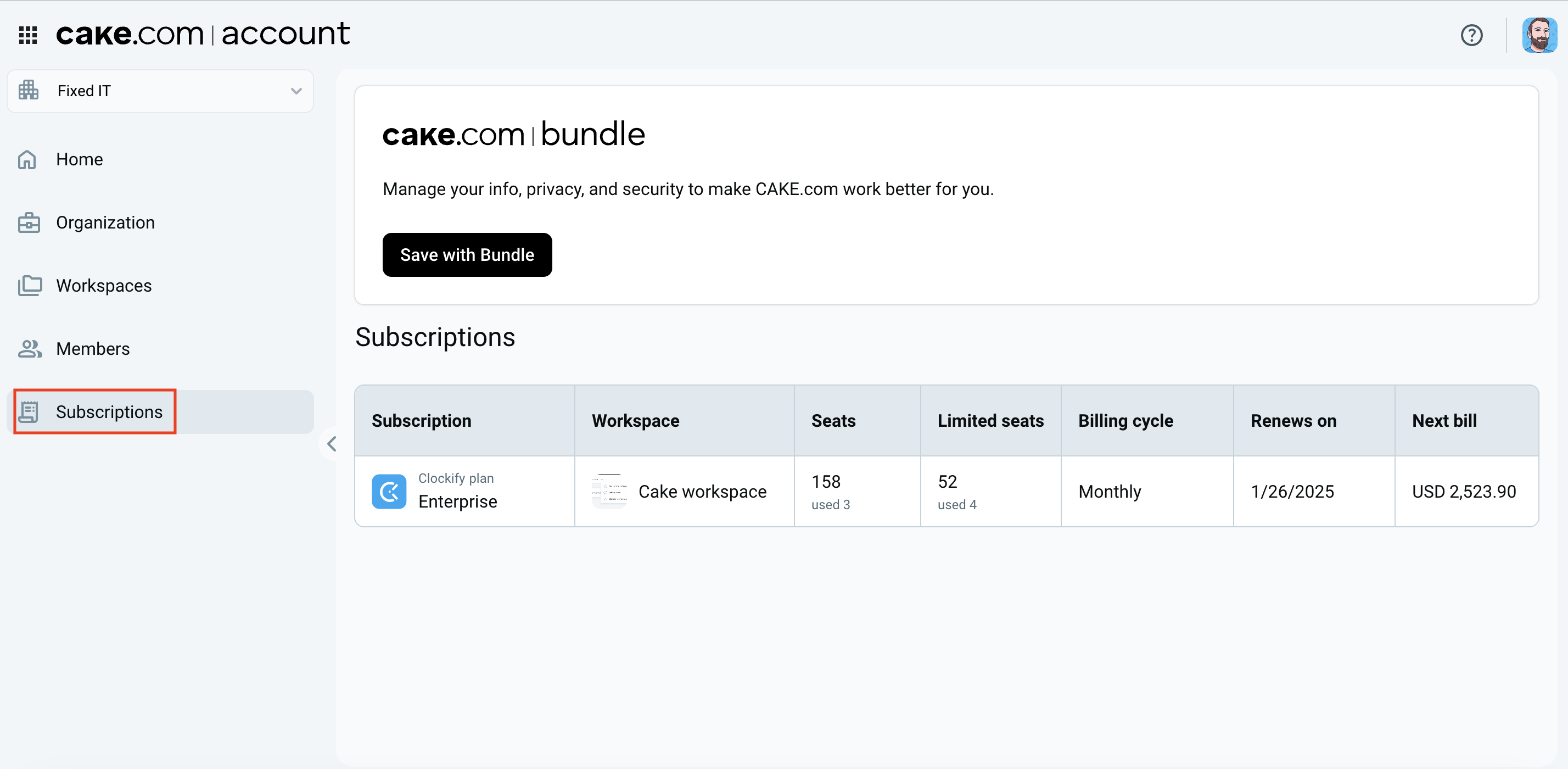
You can find a comprehensive list of your active subscriptions summarized in a table with key details for each subscription. Subscriptions are arranged from oldest to newest.
| Field | Description |
| Subscription | Name of the current subscription plan and the product icon of the CAKE.com app |
| Workspace | Name of the workspace associated with the subscription |
| Seats | Number of seats available per organization or workspace for full members and number of used seats |
| Limited seats | Number of seats available per organization or workspace for members with limited access and number of used seats |
| Billing cycle | Period of time when the subscription is billed (monthly or annually) |
| Renews on | Date when the subscription plan renews |
| Next Bill | Amount due for the next billing cycle |
Manage subscriptions #
Organization owners or workspace admins can update or cancel the individual product subscriptions and CAKE.com Bundle subscription from the CAKE.com homepage as well as add or remove seats in the workspace. If you have a CAKE.com Bundle subscription, the bundle replaces individual product subscriptions.
To manage your subscriptions:
- Navigate to the Subscriptions page
- Select the subscription you want to update:
- Individual subscriptions: Click the specific workspace subscription you want to update.
- CAKE.com bundle: Click the CAKE.com Bundle subscription. From here, you can also click View price breakdown to see the billing details.
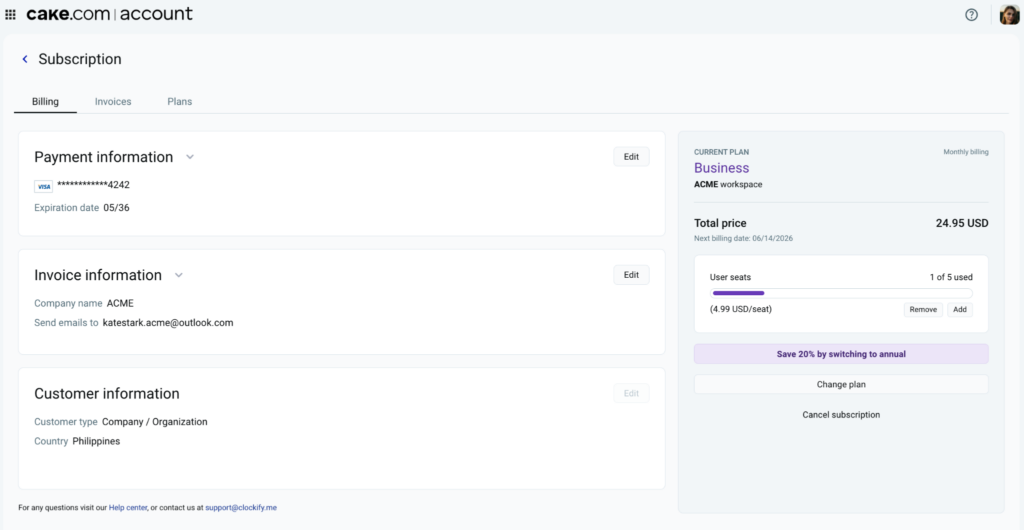
You’ll be redirected to the detailed Subscription page of the selected product where you can update your billing information, update your subscription, and access your invoices. This page contains the following tabs:
- Billing: Displays your billing information and details of the current plan.
- Invoices: Displays your billing history and invoices.
- Plans: Displays the available plans for the product which you can select if you wish to change your current subscription plan. This tab does not display if you have a bundle subscription.
Add or remove seats #
You can add or remove seats to your subscription depending on the needs of your organization.
To update the number of seats in your workspace:
- Navigate to the Subscriptions page
- Click the workspace subscription that you want to update
- Click Add or Remove on the detailed Subscription page
- If you clicked Add:
- Click + or enter the number of seats you want to add
- Review the amount charged
- Select the I agree to CAKE.com Terms of Use checkbox
- Click Finish payment
- If you clicked Remove:
- Click – or enter the number of seats you want to remove
- Click Remove seats
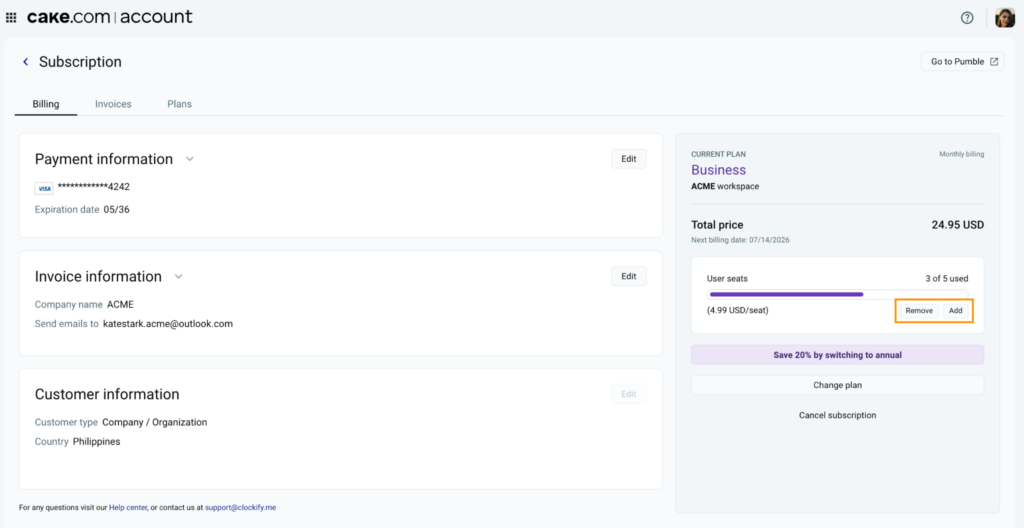
The number of user seats added will automatically be updated to reflect the number of added or removed seats. If you add seats in the middle of a billing cycle, you will only be charged the prorated amount depending on the remaining time in your current billing cycle. On the other hand, you will receive no refunds if you choose to remove seats from your workspace.
If you have the CAKE.com Bundle, check this guide on how to add or remove bundle seats.
Upgrade subscription plan #
If your current subscription lacks the features you need, you can choose to upgrade your plan via the detailed Subscription page.
To upgrade individual subscription:
- Navigate to the Subscriptions page
- Click the workspace subscription that you want to update
- Change your plan on the detailed Subscription page:
- Click Change plan to take you to Plans tab or
- Click on the Plans tab
- Select the billing cycle (monthly or annually)
- Click Upgrade on the subscription plan you want to upgrade to
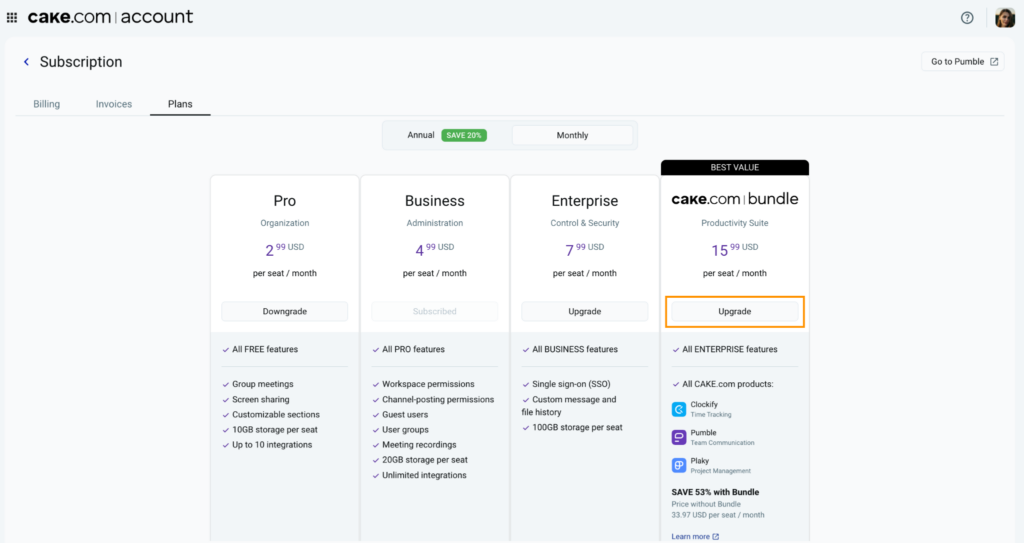
6. Review the subscription details on the Upgrade to dialog box
7. Select the I agree to CAKE.com Terms of Use checkbox
8. Click Finish payment
Your upgrade applies automatically and you will be charged with a prorated price based on the remaining time in your billing cycle.
Downgrade subscription plan #
Downgrading your subscription results in the loss of access to both the features and the data processed during the period on the higher subscription plan.
There is no refund if you choose to downgrade your subscription plan.
To downgrade individual subscription:
- Navigate to the Subscriptions page
- Click the workspace subscription that you want to update
- Change your plan on the detailed Subscription page:
- Click Change plan to take you to Plans tab or
- Click on the Plans tab
- Select the billing cycle (monthly or annually)
- Click Downgrade on the subscription plan you want to downgrade to
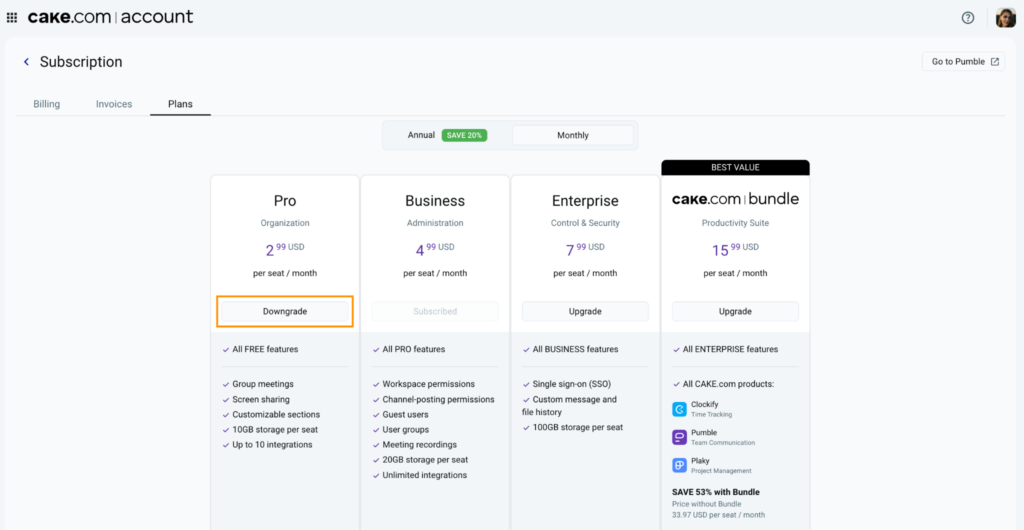
6. Click Downgrade on the Switch to dialog box
The subscription plan will be downgraded once your current subscription ends.
Cancel subscription plan #
Paid subscriptions can be cancelled at any time by the Organization owner or Workspace admin for workspaces they manage. When you cancel, no further charges will be billed to your account.
What happens when you cancel:
- You will still have access to paid features until the end of your current billing cycle
- Once your cycle ends, your workspace will be switched to the Free plan
- If you are subscribed to the CAKE.com Bundle, cancelling will downgrade all product workspaces to the Free plan
- You will still have access to your data but anything processed while on the paid plan will no longer be accessible until you upgrade your subscription
If you need to adjust your budget, you can consider removing unused seats or downgrading to a lower subscription plan before cancelling your subscription.
If there are features you are looking for, please reach out to CAKE.com support so we can assist you in evaluating your workspace needs.
To cancel individual subscription:
- Navigate to the Subscriptions page
- Click the workspace subscription that you want to update
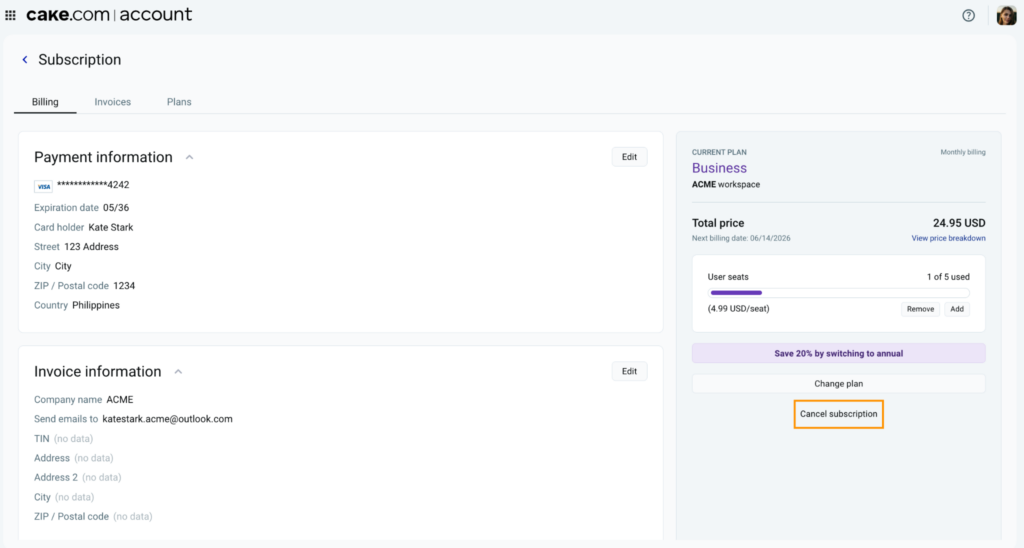
- Click Cancel subscription on the detailed Subscription page
- Review the cancellation details
- Click Cancel subscription