Clockify and Pumble integration
As part of the CAKE.com Suite, Clockify and Pumble can be integrated within workspaces in the same organization. The notifications you choose in your Clockify preferences are instantly delivered to Pumble when the conditions are met.
This integration brings time management visibility (Clockify) in your team communication hub (Pumble), and keeps its users up-to-date with their time tracking activities without the need to switch apps.
Before you begin #
To use this integration, you must have the following:
- A workspace in Clockify
- A workspace in Pumble
Integration features #
Direct approvals #
When you submit a time off request, the approver receives a notification about the request with Approve and Reject buttons included which gives the approver a quick way to approve or reject the request.
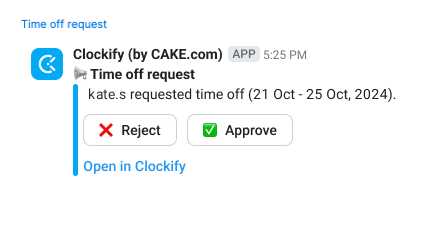
Approvers can also receive a notification when you submit a timesheet. This notification contains a link that takes them to the workspace where they can review and decide to approve or reject the submitted timesheet.
Automated reminders #
In your Clockify Preferences page, you can choose to get notifications for time tracking, timesheets, or overdue invoices. For example, you can get reminders for missing to start the timer or missing the time tracking target. For invoices, you can also get an alert once they become overdue.


Synced availability #
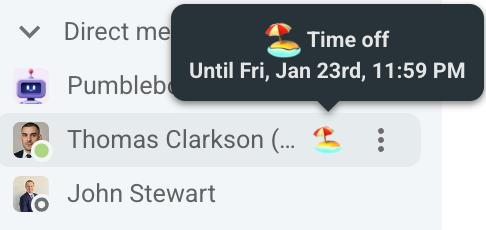
If you have a team member who is on time-off, a time-off status icon automatically displays beside the user’s name which makes the time-off status visible for everyone in the workspace.
How it works #
To use this integration:
- Set up your notification preferences in two ways:
- In Clockify: Go to Preferences > Pumble notifications and select the notifications you want to send and the Pumble workspace
- In Pumble: Open the Clockify (by CAKE.com) in the apps section and click Set preferences here to take you to Clockify preferences
2. Select the notifications you want to receive
3. Select the Pumble workspace where the notifications will be sent
Data flow #
The table shows how the data flows from Clockify to Pumble.
| Clockify (Trigger) | Pumble (Result) |
| Time off requests | For approvers: Notification that user requested time-off with Approve/Reject buttons For members: Notification that request has been approved/rejected |
| Approved absence | Status icon next to the user’s name |
| Timesheet approvals | For approvers: Notification that user submitted timesheet For members: Notification that timesheet has been approved/rejected |
| Reminders | Notification that you’ve tracked less time than the target |
Learn more about the Clockify and Pumble integration by watching this video.
Next steps #
Check out this article for a step-by-step guide on how to integrate Clockify and Pumble and start using this integration.