Are you a Plaky user in need of a seamless time tracking experience?
Do you wish your Plaky tasks had built-in time tracking?
If so, you’re not the only one.
Which is why we’re thrilled to announce that the Plaky + Clockify integration is now LIVE!
What is the Plaky + Clockify integration?
The Plaky + Clockify integration is the bridge that connects task management and time tracking.
With it, you can track time for each Plaky task within the Plaky UI itself, without having to switch to another app or sacrifice any of Clockify’s reporting functionalities.
All the data you log on a task in Plaky will be reflected in Clockify, so you can accurately bill clients and generate reports without disrupting your workflow.
How to set up the Plaky + Clockify integration
Setting up the integration itself is easy.
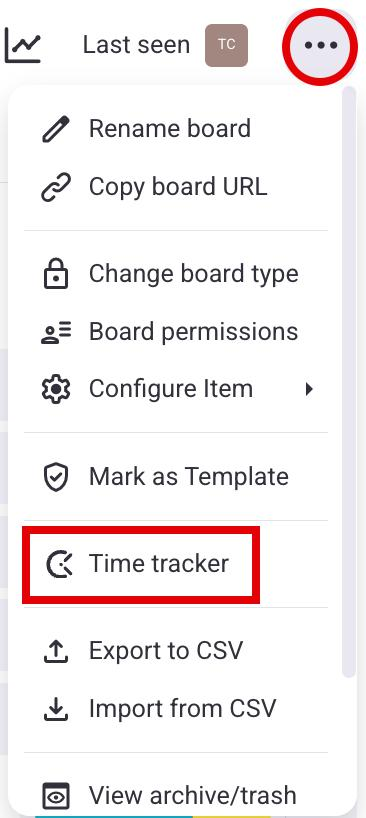
Just go to your Plaky board, click the three dots icon in the top right corner, and select Time Tracker from the dropdown menu.
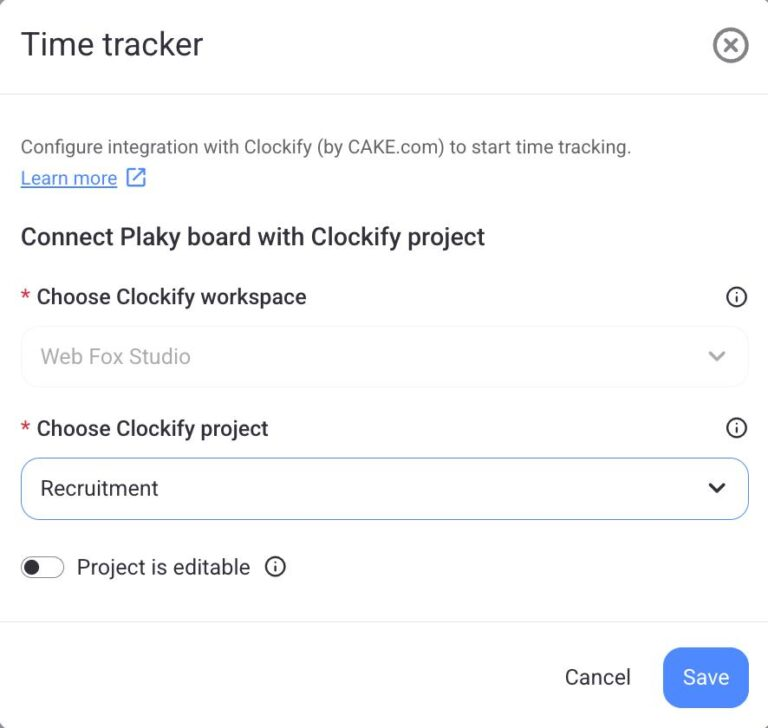
Then choose the desired Clockify workspace (this option will be grayed out if you’re only part of one Clockify workspace), create or choose a Clockify project from a dropdown menu, and click Save.
Voilà!
You can now track time using Clockify in Plaky.
Streamline operations with CAKE.com
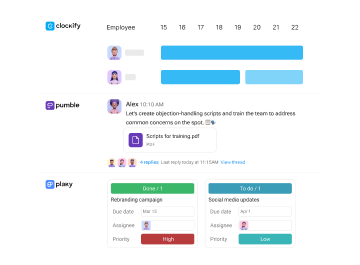
Discover the true power of integration. Use Clockify, Pumble, and Plaky together to simplify your workflows and increase efficiency.
How to track time in Plaky
And the process of actually using the integration is simple and intuitive.
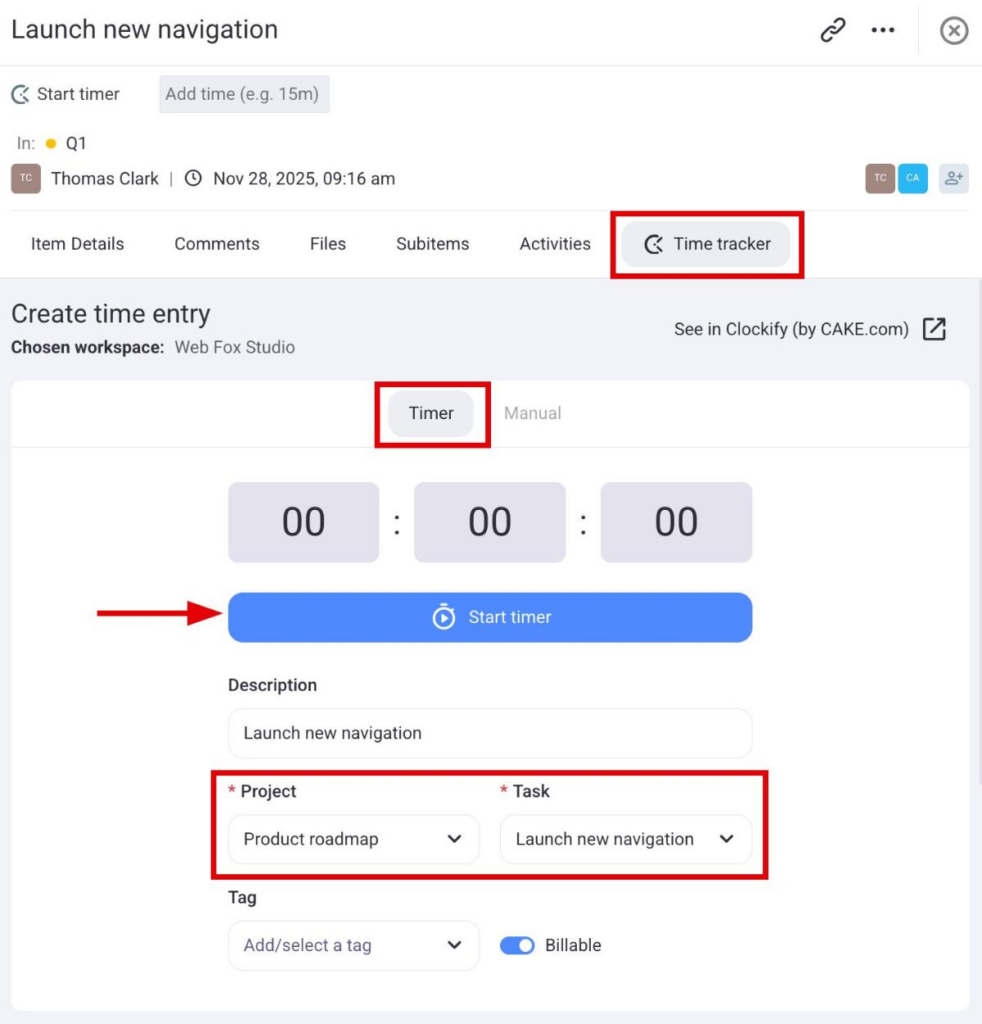
Every time you open a Plaky card, it will have a Time Tracker tab.
Within that tab, just choose the Clockify project and task you want the time entry to use, and click Start timer.
And don’t worry if you forget to start or stop the timer at the right time — we all need time to adjust to new changes, even when they’re great changes.
That’s why you have the option to enter time manually, just like you can in Clockify. To use it, choose the Manual mode and enter the date, as well as the start and end times.
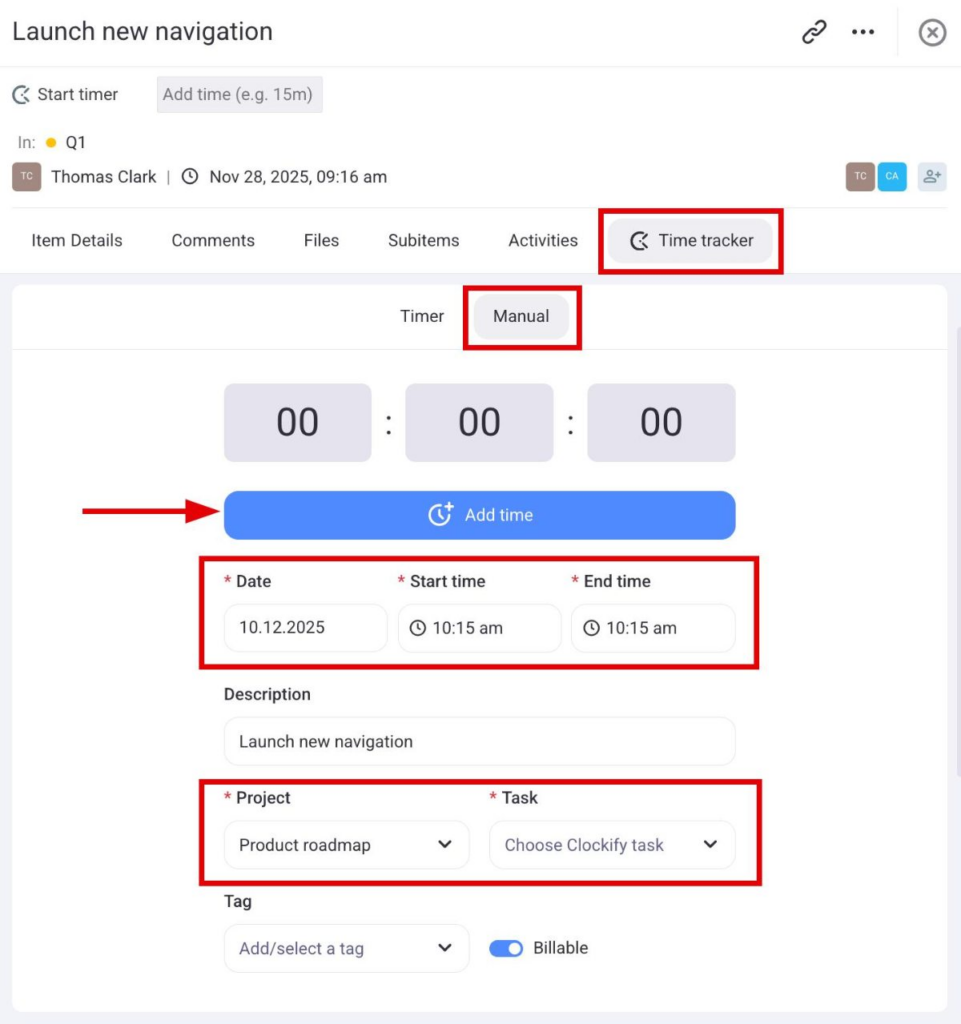
In either case, you’ll have a toggle to mark the time as billable or not.
And, in case you need to edit the time entries, you can do even that from Plaky’s UI — just click on the three dots icon next to a time entry, click Edit, change what you need, and click Save.
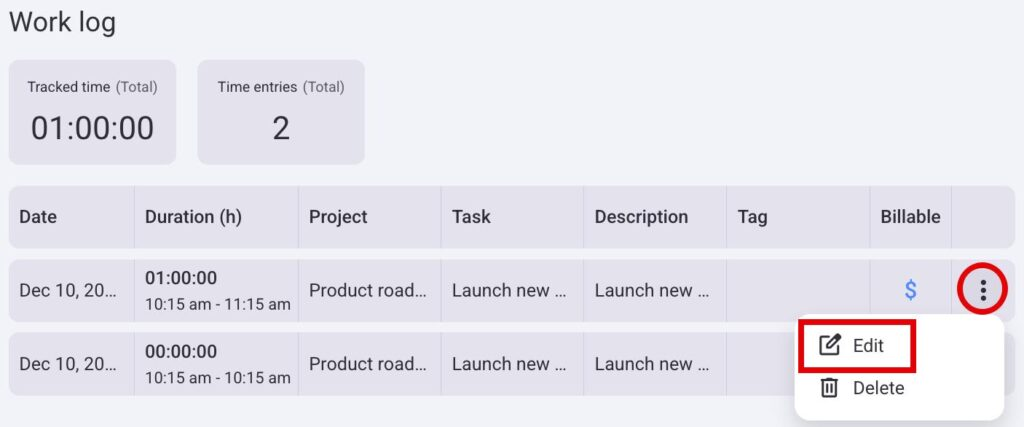
All the changes you make, and even the edits you make afterward, will automatically show up in Clockify too, so you’ll always have the most up-to-date data for reports, invoices, and analyses.
Who can set up and use the integration?
The Plaky + Clockify integration is available to all users on all plans and devices.
This just has to be the case — otherwise, you wouldn’t be able to generate accurate reports, bill clients accurately, or stay compliant with labor laws.
All you need to do is have both a Plaky account and a Clockify account. And, since both of these apps are available for free, there really is no barrier to entry.
That said, keep in mind that only Plaky Board owners can connect a Clockify Project to a Plaky Board.
What about the Clockify extension for Plaky?
Now, some of you may be confused by this announcement since you already track time in Plaky using Clockify — via the browser extension.
Maybe you’re wondering whether you should make the switch to the integration if the extension is already doing a good job for you?
The answer is yes!
Here’s why:
The Clockify + Plaky integration directly connects these 2 apps through APIs. This makes it much more secure than the browser extension, which requires giving the browser permissions and may get bugged out by browser updates or other weird shenanigans.
Get a fully integrated workflow with Pumble
The team that made Clockify and Plaky — CAKE.com — also made Pumble, a team communication app.
Pumble features this kind of deep integration with both Clockify and Plaky as well, letting you get chat notifications whenever there are any changes on your Plaky tasks or when your Clockify time-off requests and timesheets get approved.
This lets you focus on your work without having to worry about missing any updates. And you can always mute Pumble for deep work sessions and then quickly catch up on all you’ve missed, including Clockify and Plaky notifications, as soon as you’re done.
All of these tools have a free version, but you can get the premium subscription with superb features for all of them at a 53% discount — with the CAKE.com Bundle.