Sign up at CAKE.com
To use any of the CAKE.com apps, you need to sign up and create a CAKE.com Account. Your CAKE.com Account allows centralized access to our productivity tools: Clockify (time tracking), Pumble (team communication), and Plaky (project management).

You can create only one (1) CAKE.com Account per email address. With a single CAKE.com Account, you have the flexibility to be a member of multiple organizations and workspaces.
To get started, choose the option that best describes your role:
- Option 1: Create a workspace – choose this if you are a business owner or a freelancer who needs to set up a space to manage work
- Option 2: Join an organization – choose this if you have been invited to join a team by your employer or manager who already uses a CAKE.com app
Option 1: Create a workspace (For owners and admins) #
You can sign up for a CAKE.com Account directly from CAKE.com or from any of the CAKE.com apps. When you sign up for the first time in CAKE.com, you will be prompted to create an organization along with the product workspace you want to use.
Sign up from CAKE.com #
To sign up directly from CAKE.com:
- Open CAKE.com in your browser
- Click Get Started
- Choose your preferred login option:
- via Email: Enter your email then click Continue with email. Get the verification code from your email and enter it in the verification screen to proceed.
- via Google/Microsoft/Apple: Click Continue with Google/Microsoft/Apple and follow the prompts to proceed.
- Do the following in the Create account dialog box:
- Enter your User name and Organization name
- Select the I agree to CAKE.com Terms of Use checkbox
- Click Continue
- Choose the CAKE.com app you want to use (e.g. Clockify)
- Click Create workspace and continue

Your first workspace will have the same name as your organization. You will also get the Organization owner role as the creator of the first workspace in the account.
At this point, you have successfully created your CAKE.com Account and you have the option to go immediately to the product workspace created or you can stay in the CAKE.com homepage and get more familiar with the website. Learn more about the CAKE.com Suite in this article.
Option 2: Join an organization (For team members) #
To join your team, you must receive an official invitation email or sign up directly from CAKE.com. You may receive invitations to join a workspace on:
Join from an email invite #
To join an organization or workspace when you receive an invite:
- Check your inbox for an invitation email from Clockify, Pumble, or Plaky
- Click the Accept Invite or Join Plaky/Pumble button
By accepting an invitation, you’ll automatically create a CAKE.com Account. You will also become a member of the organization associated with the workspace.
Join from CAKE.com #
You can also sign up directly from CAKE.com to join your organization and create your CAKE.com Account.
To join an organization directly from CAKE.com:
- Open CAKE.com in your browser
- Click Get Started
- Choose your preferred login option:
- via Email: Enter your email then click Continue with email. Get the verification code from your email and enter it in the verification screen to proceed.
- via Google/Microsoft/Apple: Click Continue with Google/Microsoft/Apple and follow the prompts to proceed.
- In the pending invitations dialog box, click Join on the workspace invite available
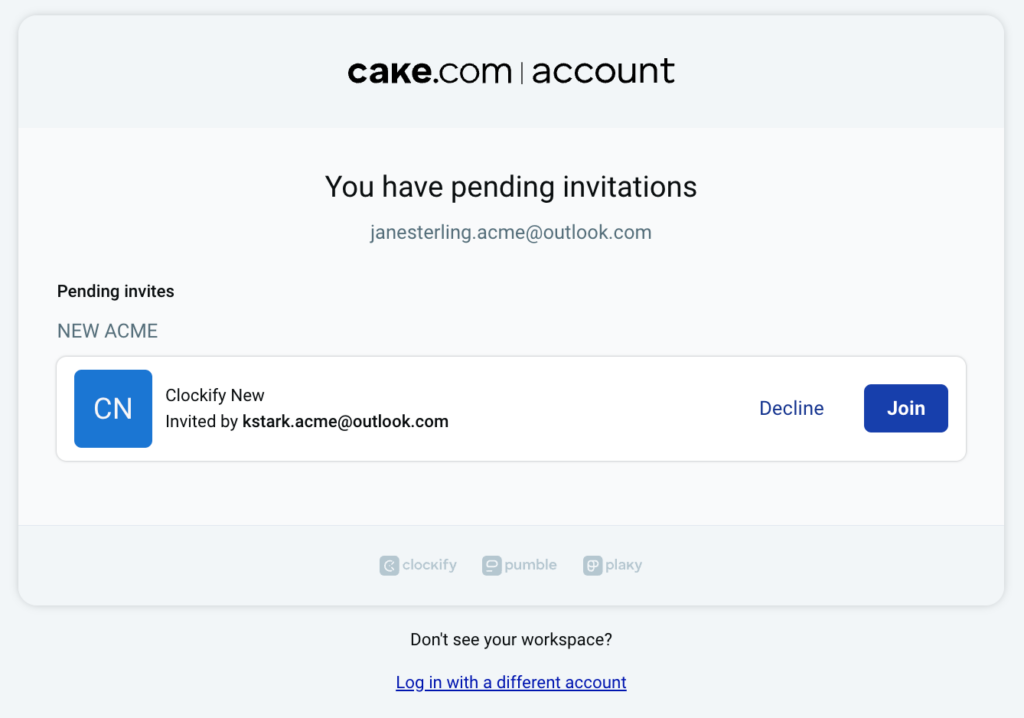
5. Do the following in the Create account dialog box:
- Enter your User name
- Select the I agree to CAKE.com Terms of Use checkbox
- Click Continue
You have the option to go immediately to the product workspace or you can stay in the CAKE.com homepage and get more familiar with the website. Learn more about the CAKE.com Suite in this article.
FAQs #
How do I set up my password when I sign up at CAKE.com?
CAKE.com uses a passwordless login to authenticate its users. This means you don’t have to create a password, but instead you enter the one-time password (OTP) we send to your email in the verification screen to log in to your account.
What happens if I decline an invitation?
If you decline the invitation, you won’t be able to access the workspace. You have to contact the workspace owner or admin to invite you again so you can access the workspace.