Deactivate and Delete User Account
This guide explains how to deactivate and delete a user from your organization. You’ll find step-by-step instructions for managing user accounts, including how to handle deactivating and deleting user accounts, and what effects these actions have on user data across CAKE.com applications.
Key concepts #
- Deactivation removes user from organization, but their data is still in the system
- Deletion permanently removes user’s personal data from the organization
- Revoking an invite cancels access for users who were invited, but haven’t joined yet
Users can deactivate their own account from workspaces and organizations.
Owners can delete organization members’ personal data while those members’ workspace data remains.
Deactivate user from workspace #
When a user is a member of only one workspace within an organization and is deactivated from that workspace, they are also deactivated from the organization.
To delete a user from the organization, the user must be deactivated first from all associated workspaces.
To deactivate user at workspace-level:
- Go to Workspace
- Click on specific Workspace where you want to manage the user
- Click on the Open in [Clockify/Pumble/Plaky] to manage user in that specific workspace
- Select the user and follow the instructions to deactivate them
The user will immediately lose access and receive a notification about being removed from the workspace.
Deactivate own account from organization #
In the Organization page, users can deactivate their own account from an organization.
To deactivate own account:
- Navigate to the Organization page
- Choose to Leave Organization
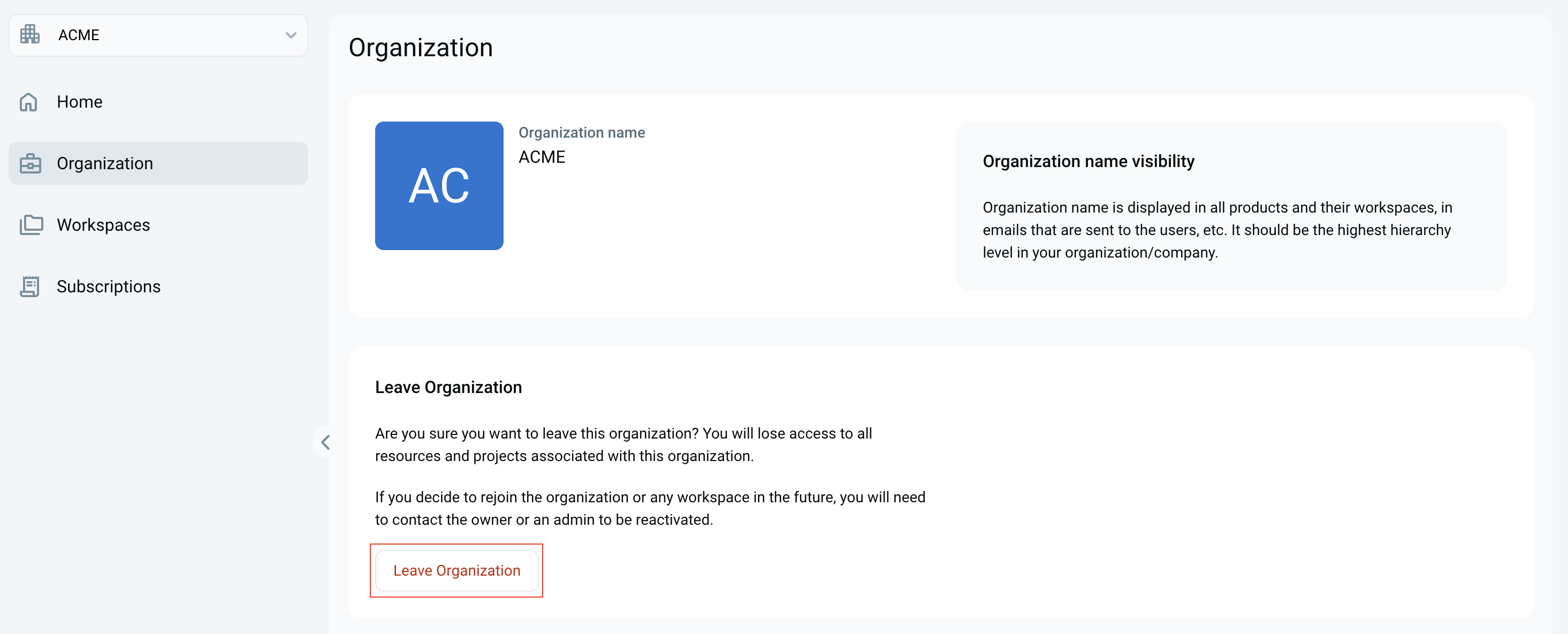
A prompt will inform you that deactivation will result in losing access to all associated workspaces and data. If you wish to rejoin, you’ll need to contact the workspace owner. - You can:
- Cancel the action
- Leave and deactivate own account
Deactivate other user accounts from organization #
Organization owners can also deactivate other users from an organization.
To deactivate other user account:
- Navigate to the Members page
- Find the user you want to deactivate and open their Member details
- Choose deactivate
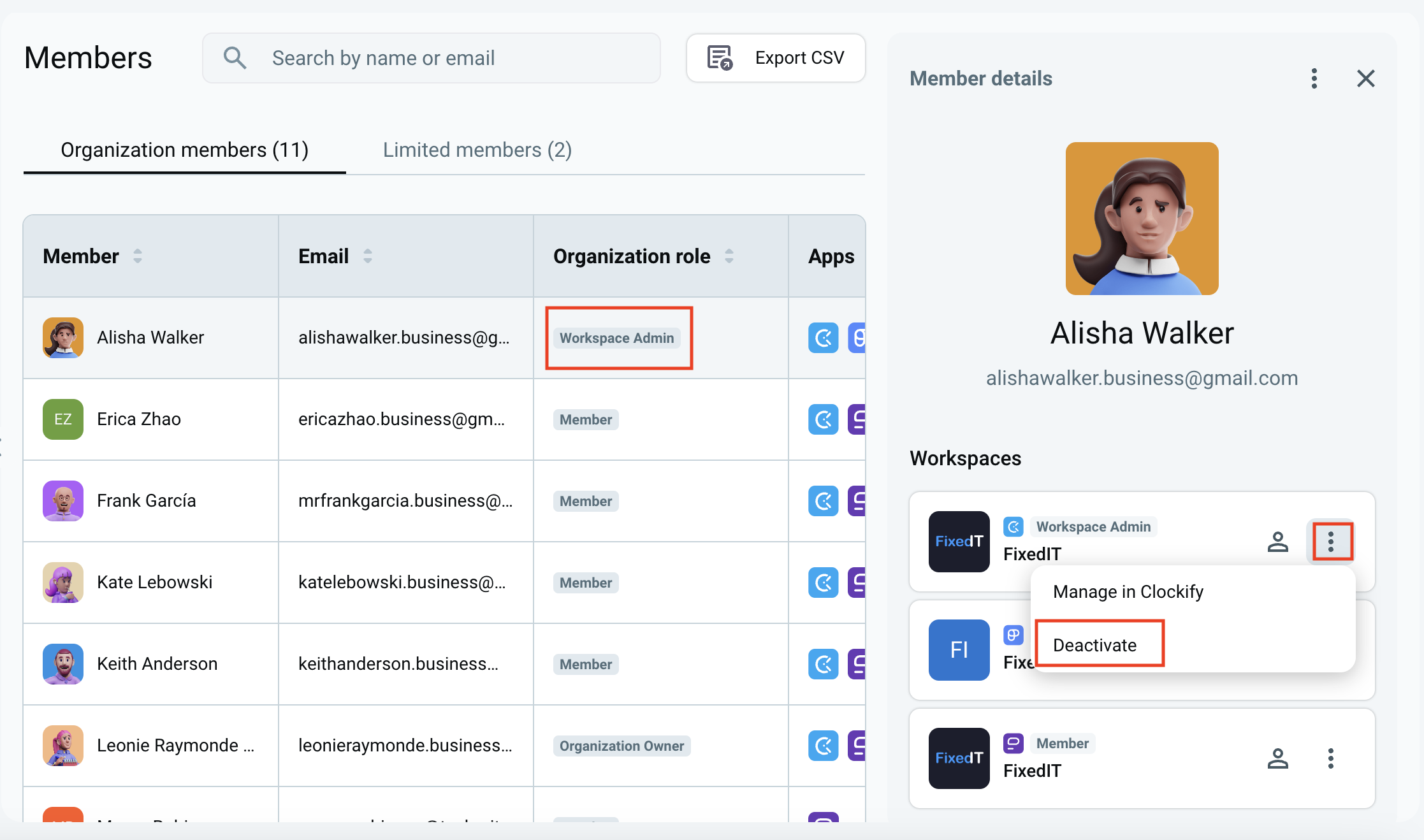
What happens after deactivation:
- User receives a confirmation message
- Their status is updated to deactivated
- They are removed from all organization-level access
- They are redirected to any other organizations they belong to
If the user deactivates their own account from their only organization, their account will be deleted. They must create a new account to use CAKE.com apps.
Reactivate a deactivated user #
Reactivation is the process where a deactivated user is reactivated to rejoin workspaces or organizations.
If a user is deactivated from all workspaces and organizations they are a member of, they won’t have any access to them, but they are still in the CAKE.com database. Therefore, when that user is reactivated, their account and associated data will be restored, allowing them to regain access to the workspaces and organizations they were previously a part of.
Deactivation/reactivation and any other changes to a user’s account information will be reflected across all workspaces with their account.
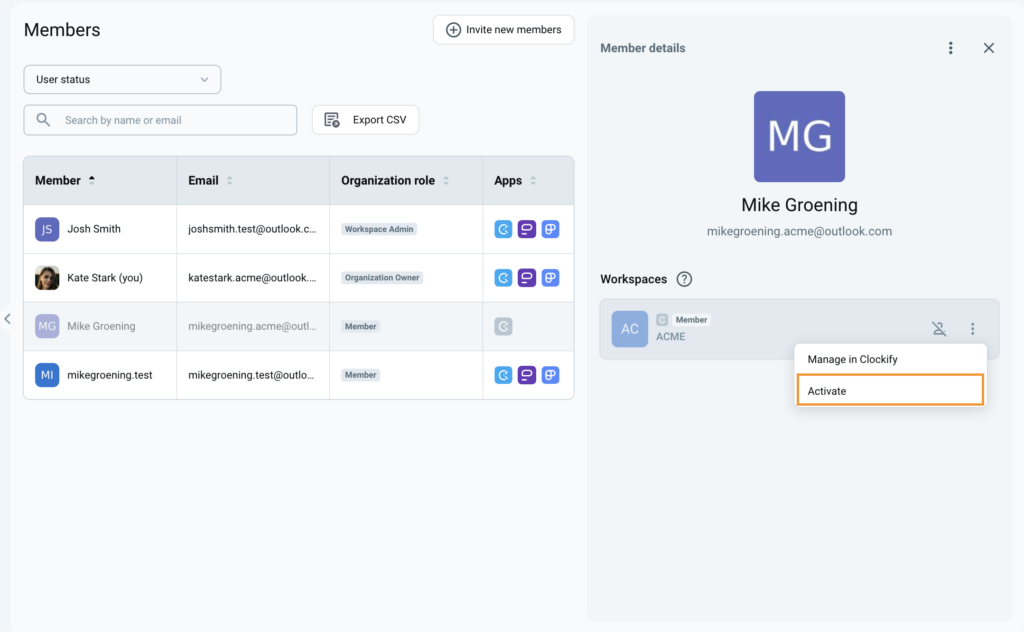
To reactivate a user:
- Navigate to the Members page
- Click on the deactivated user
- Choose Activate
Revoke user invite #
Do this action to cancel a pending invitation before a user joins your workspace.
This action is available to organization owners and workspace admins directly from the CAKE.com homepage.
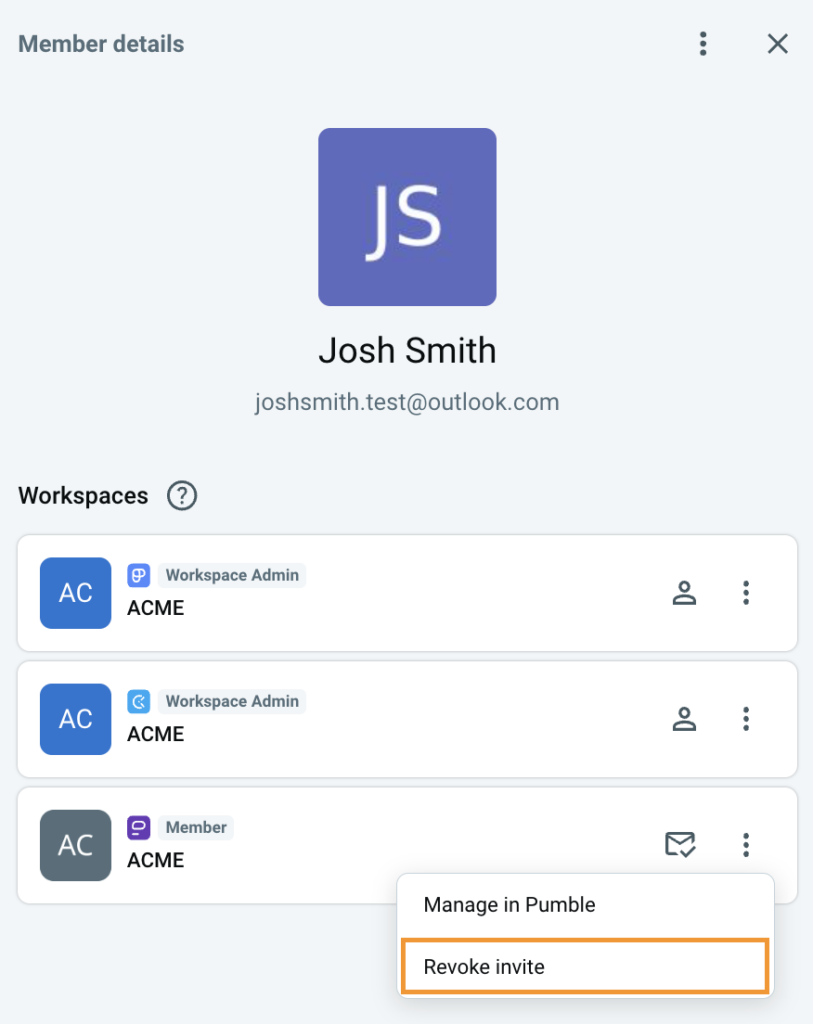
To revoke an invite:
- Navigate to the Members page
- Click on the invited user
- Choose Revoke invite
Delete user profile from organization #
Owners can delete a user’s personal data from an organization via the Members page.
You can only delete a deactivated user from the workspace/organization. The user should be deactivated in all associated workspaces before the profile can be deleted in the organization.
To delete user profile:
- Navigate to the Members page
- Select the deactivated member
- In the Member details pane, click the three dots menu
- Click Delete user
- Review deletion details
- Click Delete to confirm the deletion
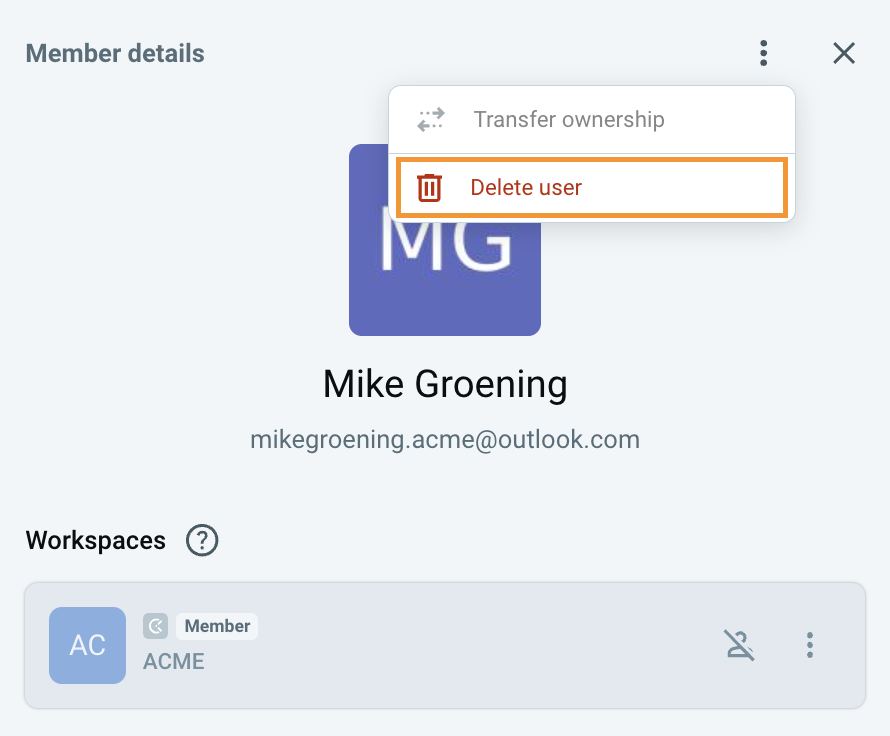
What happens after deletion:
- User receives confirmation email
- User’s personal data is permanently removed
- User’s workspace data remains available anonymously
- User’s name is replaced with an alias ‘Deleted User’
- User is removed from all workspaces in the organization containing their data
- If this was their only organization, their account is fully deleted
Deleted information is processed in compliance with GDPR policy. Check this article to know more about our privacy policy.
Deleted user loses access to the organization and their deleted profile. If re-invited, they are treated as new users.
If a deleted user belongs to other organizations, they will remain in those organizations unless specifically deleted.