Manage Member Account
Managing user accounts across an organization’s various workspaces and applications can be a significant challenge for owners and managers. This guide walks you through CAKE.com’s centralized user management, giving owners and managers control over organization access and ensuring accurate and up-to-date user information across workspaces and organizations.
Centralized member management #
CAKE.com provides a centralized page within the organization’s account for managing its members.
The Members page contains an overview of all organization members, their profile info details and access to workspaces. Owners can easily search for members by their name or email, view their role, and the CAKE.com apps where they are a member of.
To manage user account:
- Navigate to the
 Members page in your CAKE.com Account
 - Search for the user you wish to manage
- Click on a member to display the Member details pane
- Depending on your role permissions, you have the following actions available:
- Edit user name
- Transfer ownership
- Delete user
- Manage in app (Clockify / Pumble / Plaky)
- Deactivate user
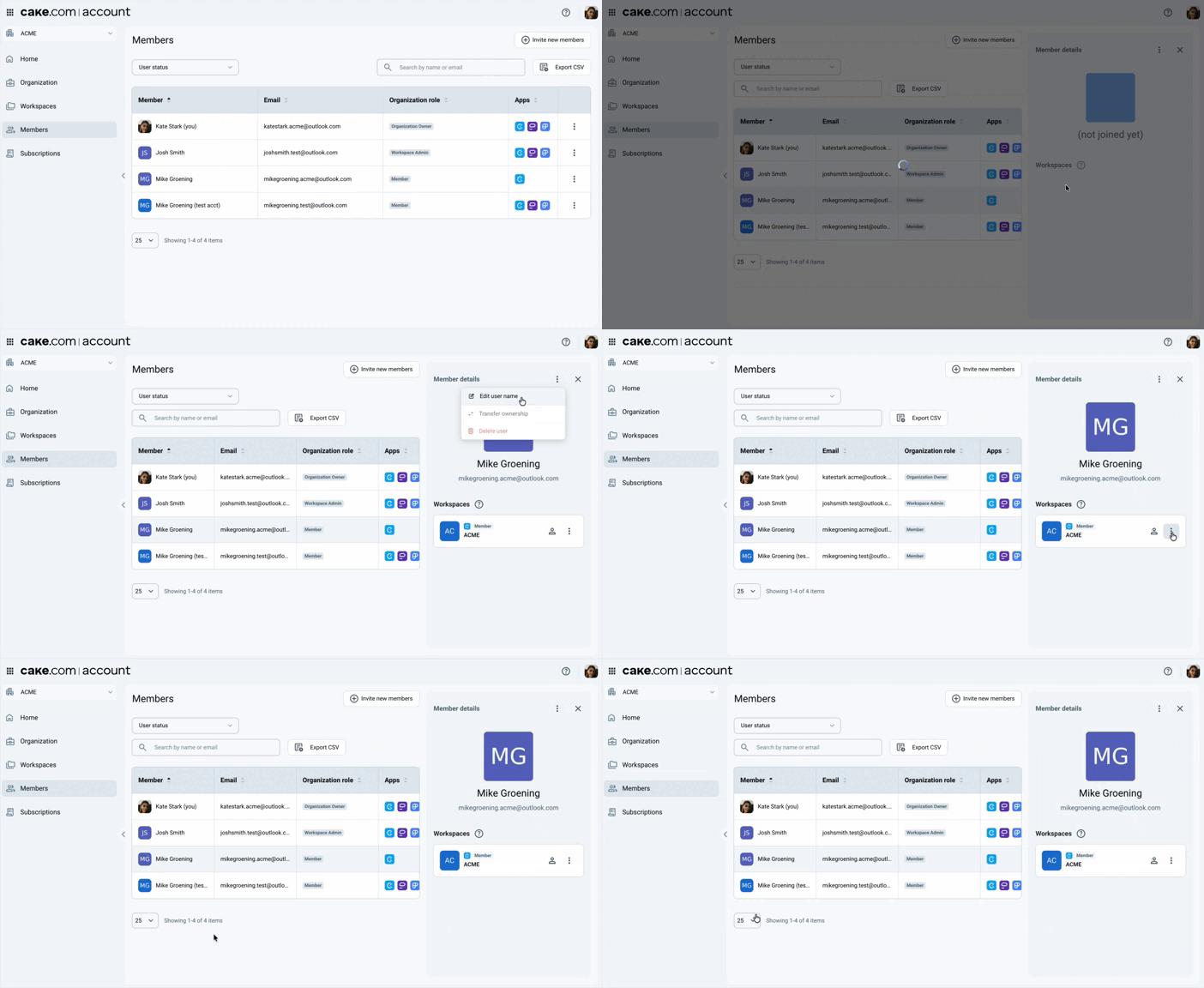
You can change the number of members displayed on the page by clicking the dropdown list at the bottom of the Members table. You can display up to 100 members per page.
Change member name #
As the organization owner, you can change member names to keep the information synchronized across workspaces, integrations, and reports. If you are a workspace admin, you can only change member names for the paid workspaces that you are assigned as admin.
This feature is only available for workspaces on paid subscription plans and cannot be used in free workspaces. If you remove a member from the paid workspace, the edited name returns to the original name.
You cannot change the member’s name if you have SCIM enabled. If you want to change the member name, you should do this in your IdP.
To change the user name:
- Navigate to the Members page
- Click the
 three dots icon on the member row
 - Click
 Edit user name
 - Enter the Name in the field
- Click Save
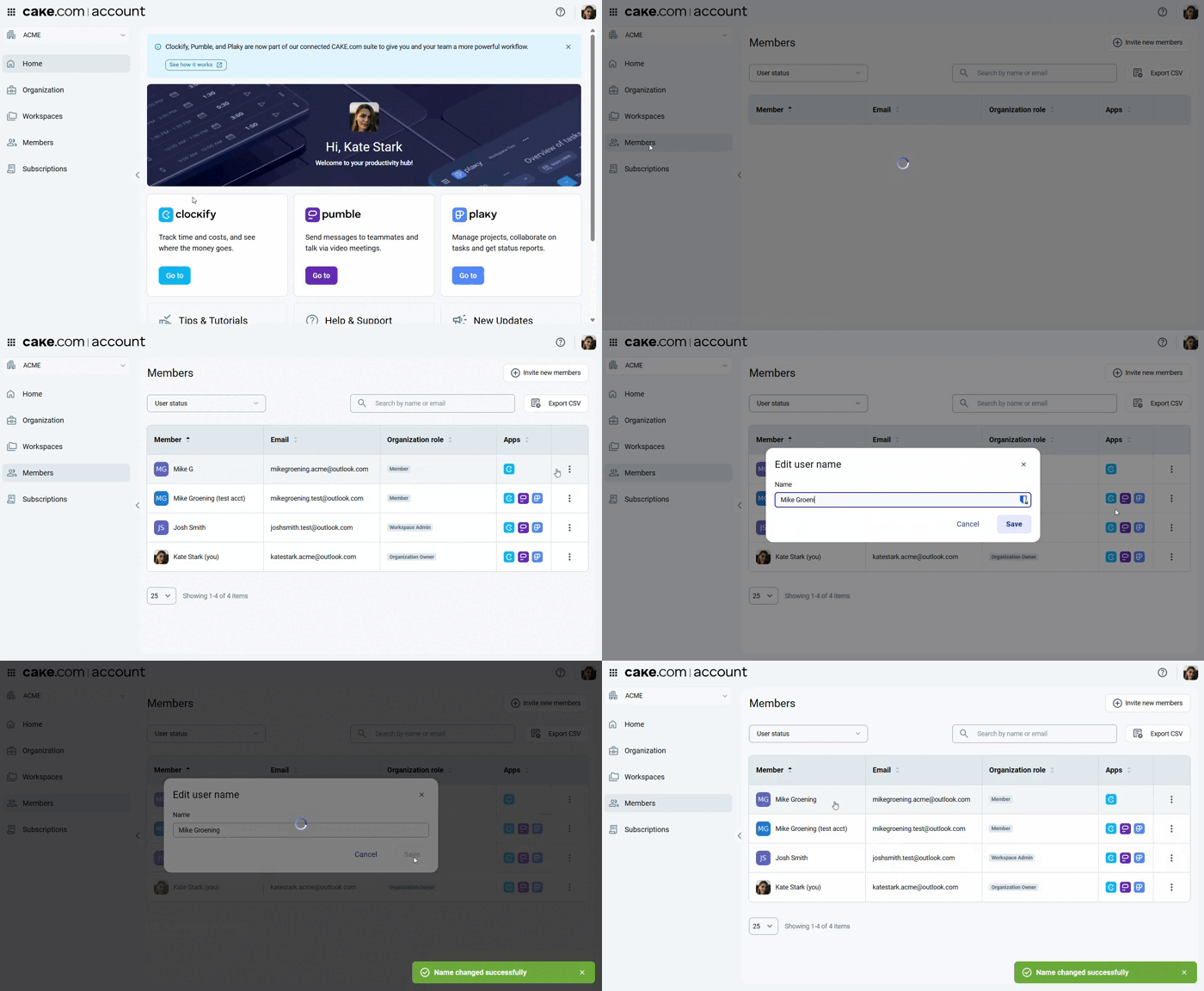
The updated user name will be applied to all paid workspaces in the organization. If the member belongs to multiple organizations, the name change only applies to your organization and will not affect others, so different names may be displayed across different organizations.
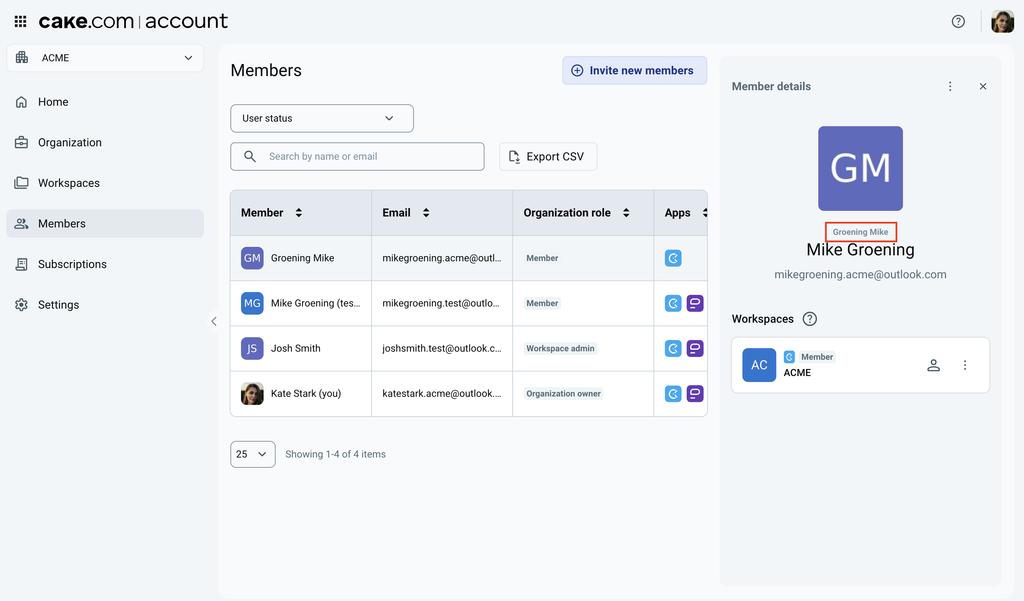
If an organization member changes their own user name, that update is applied across all their organizations and workspaces and overrides the custom name set by the organization owner or admin.
FAQs #
Why can’t I edit the user name for my team member?
Here are possible reasons why the Edit user name option is disabled:
- If the member is not part of a workspace on a paid plan, you cannot change the member’s user name.
- If you have SCIM enabled, you should change the member name in your IdP.
- The member you are trying to change the name is the organization owner.
As a workspace admin, can I change the name of the organization owner?
No, you cannot change the user name of the organization owner. You can only change the names of members on the workspaces you are assigned to.